Work on a repair order
Add repair notes
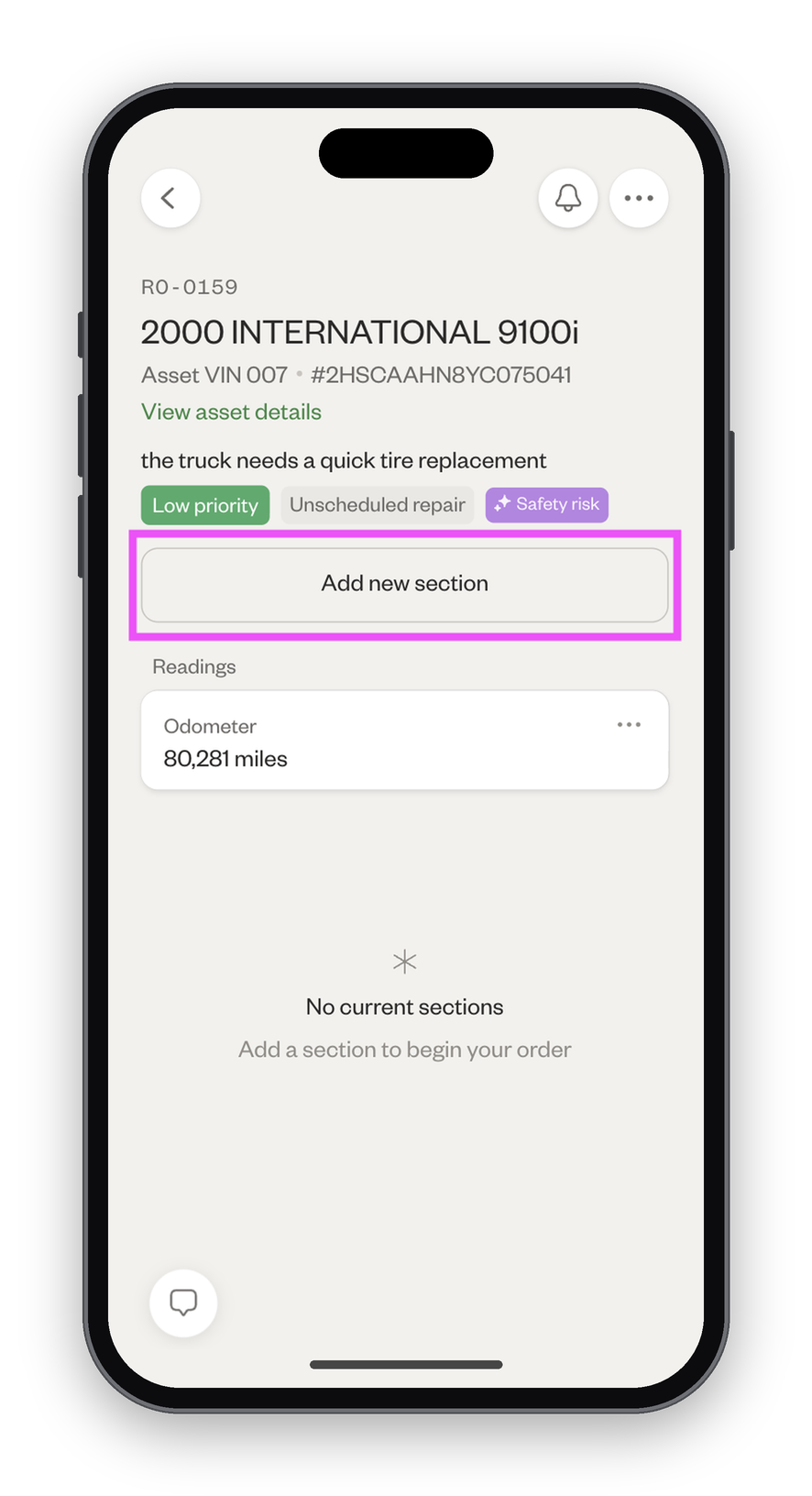
- Click "Add section" to get started.
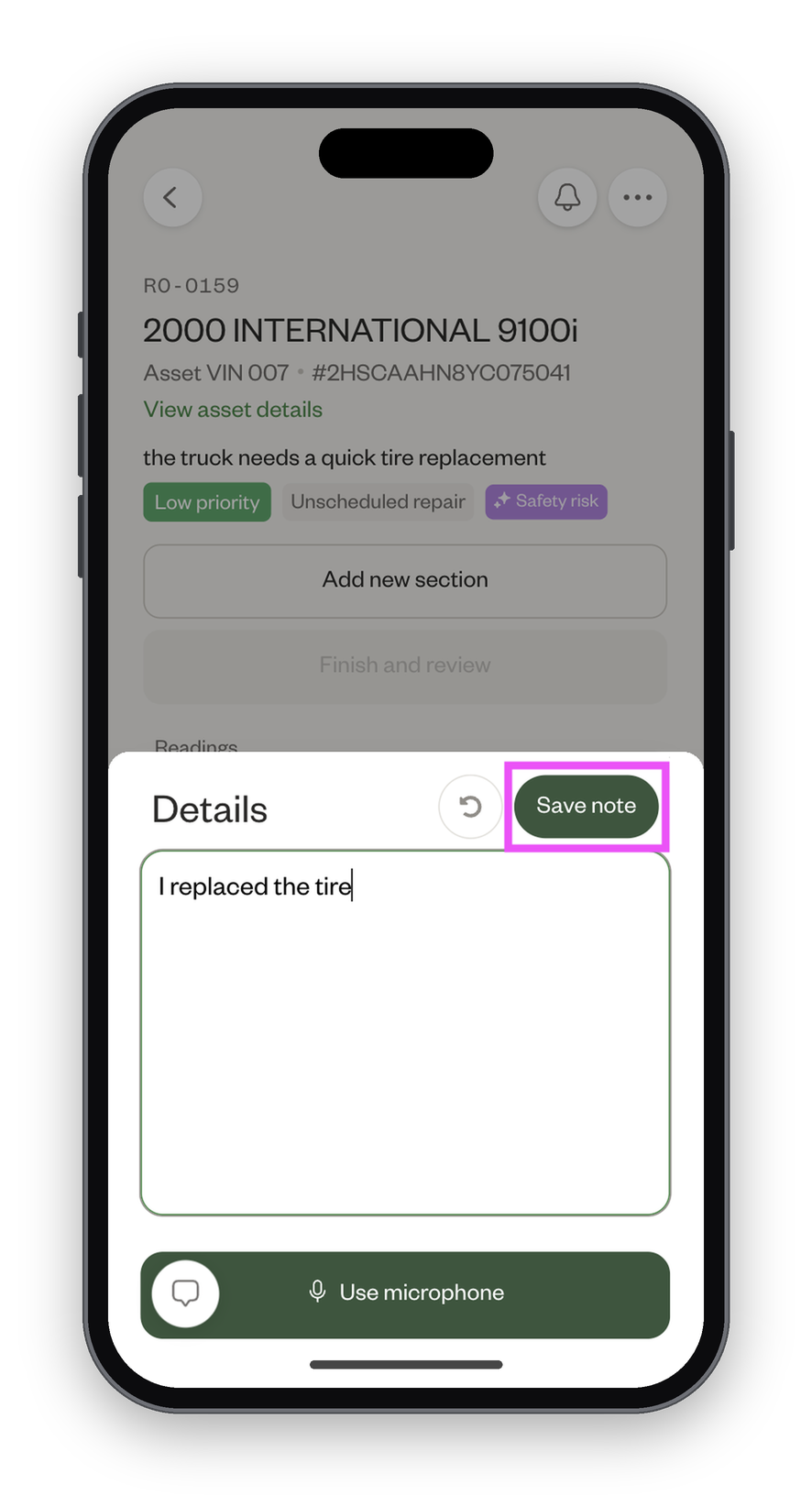
- Enter your repair note, then click "Save notes."
Add labor
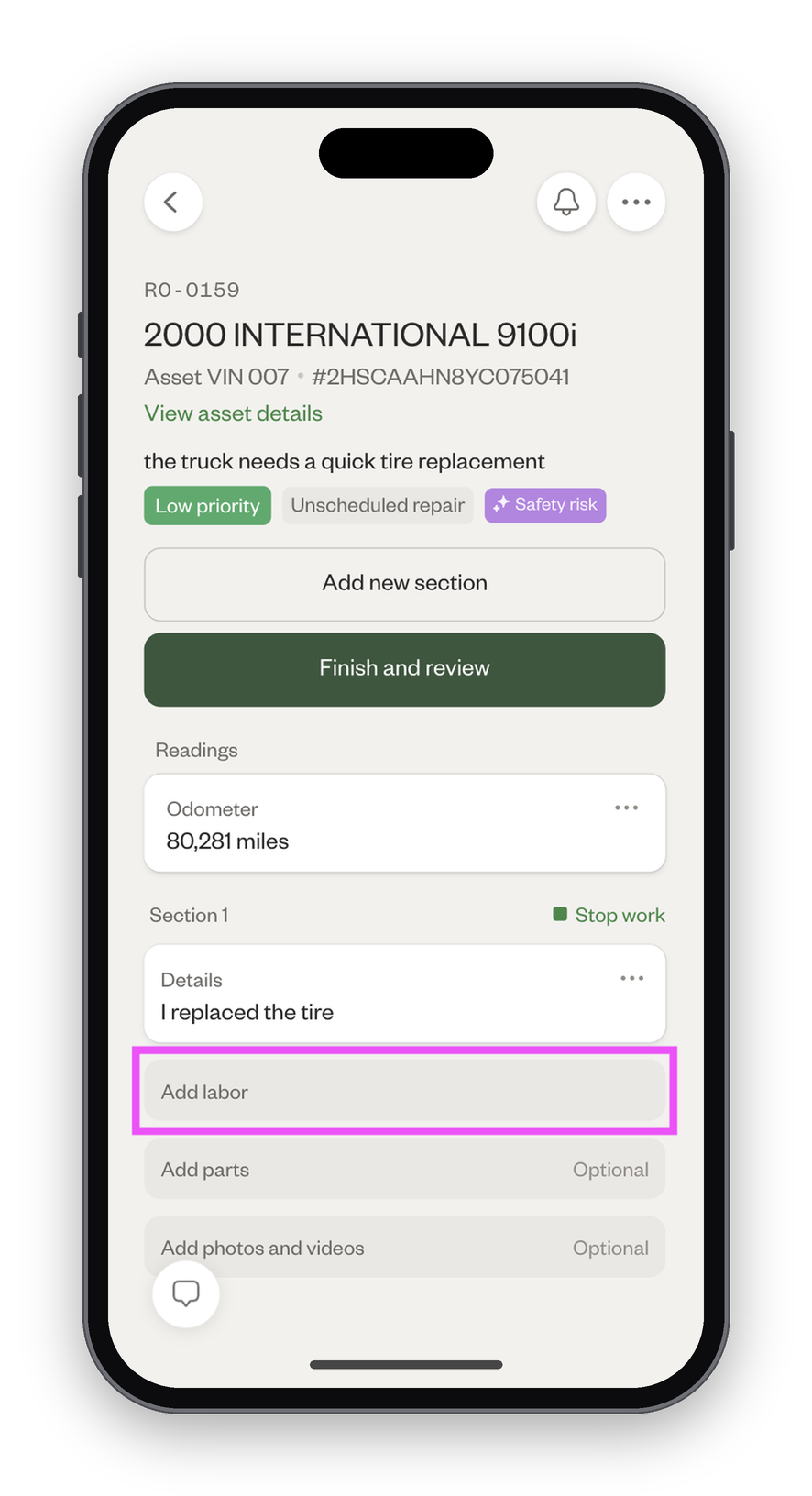
- Click "Add labor."
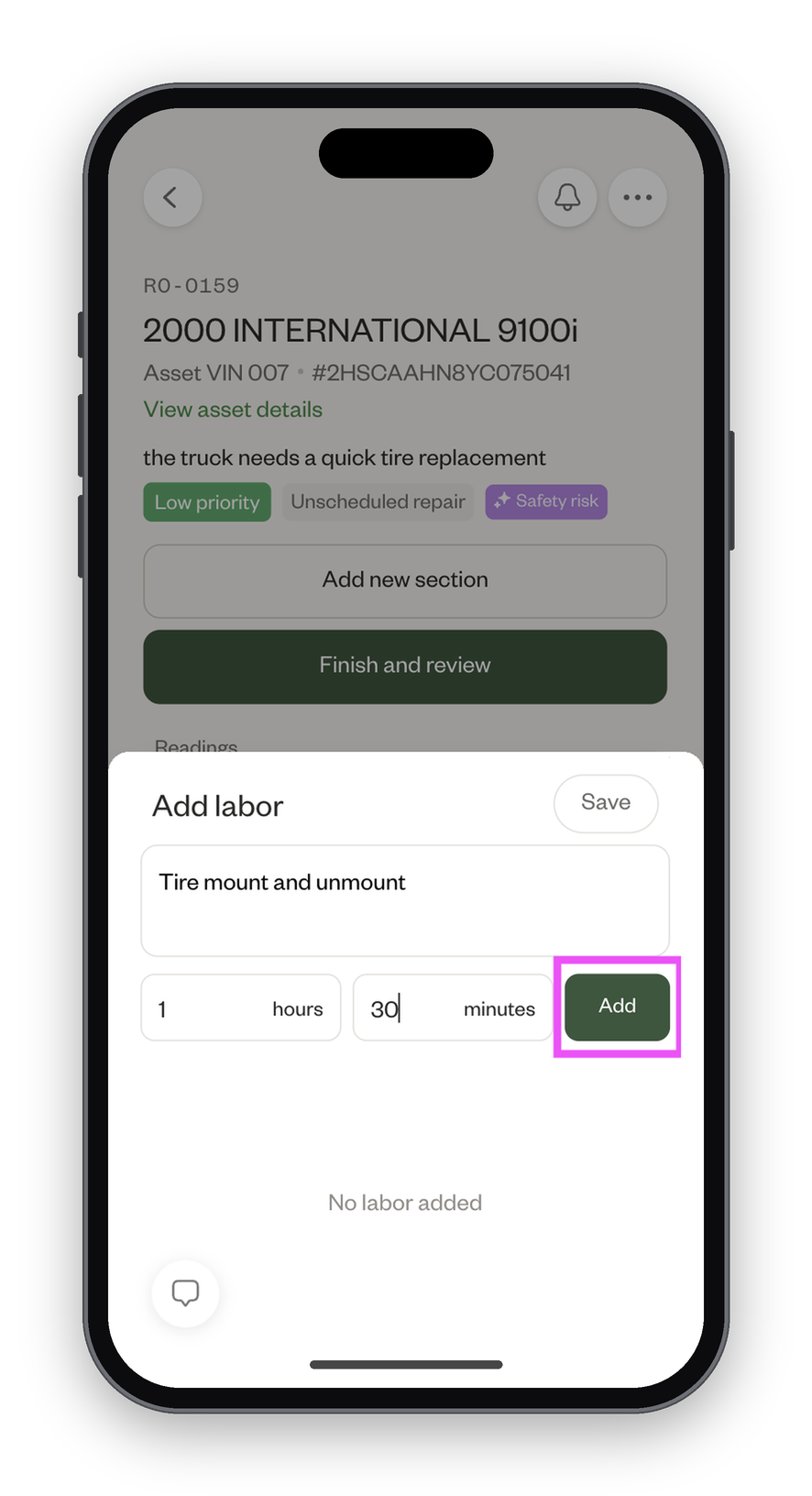
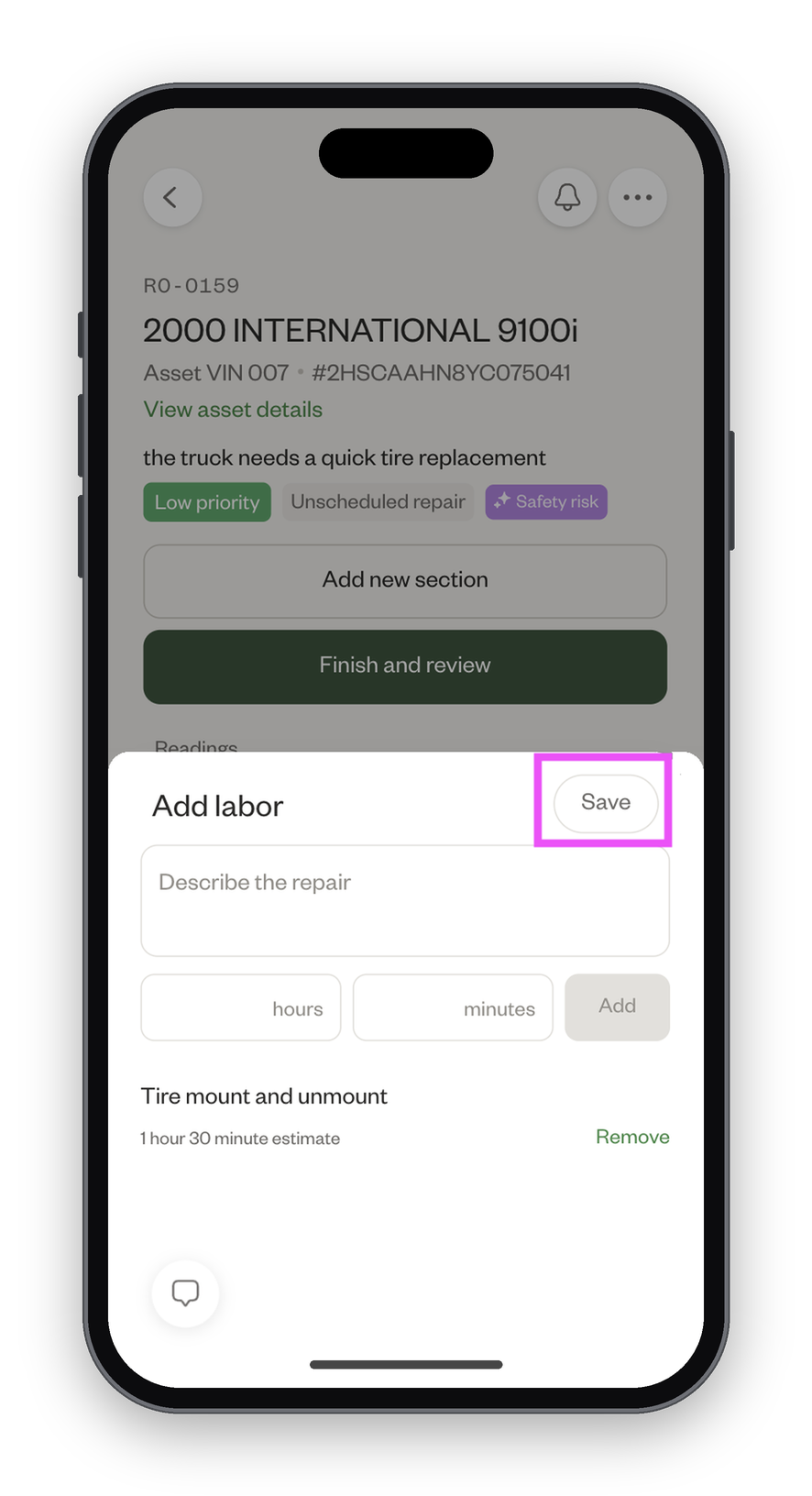
- Add a description of the labor you performed. Optionally, enter the time it took to complete that labor. Then, click "Add."
- When you're done recording labor, click "Save."
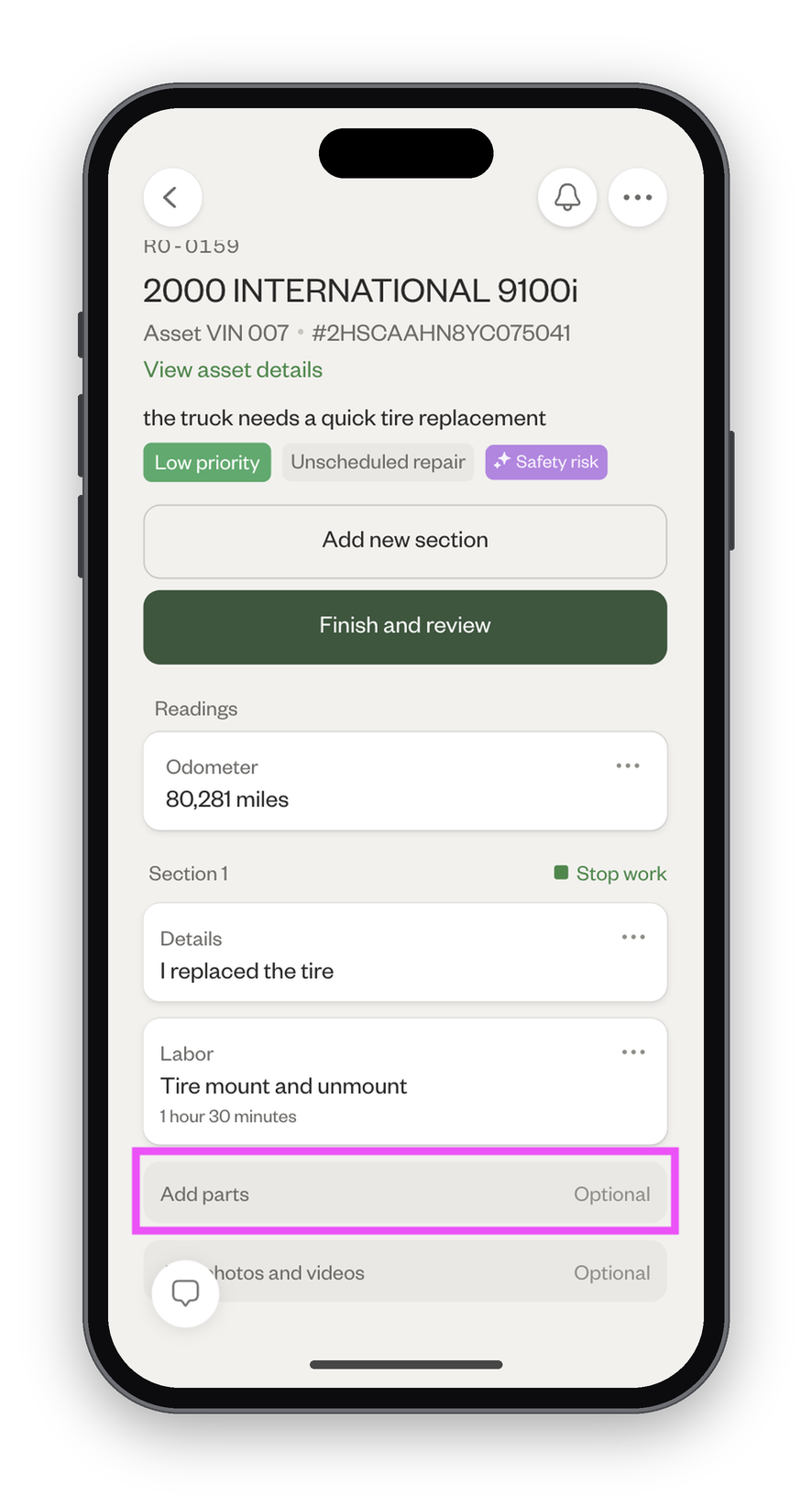
Add parts
- Click "Add parts."
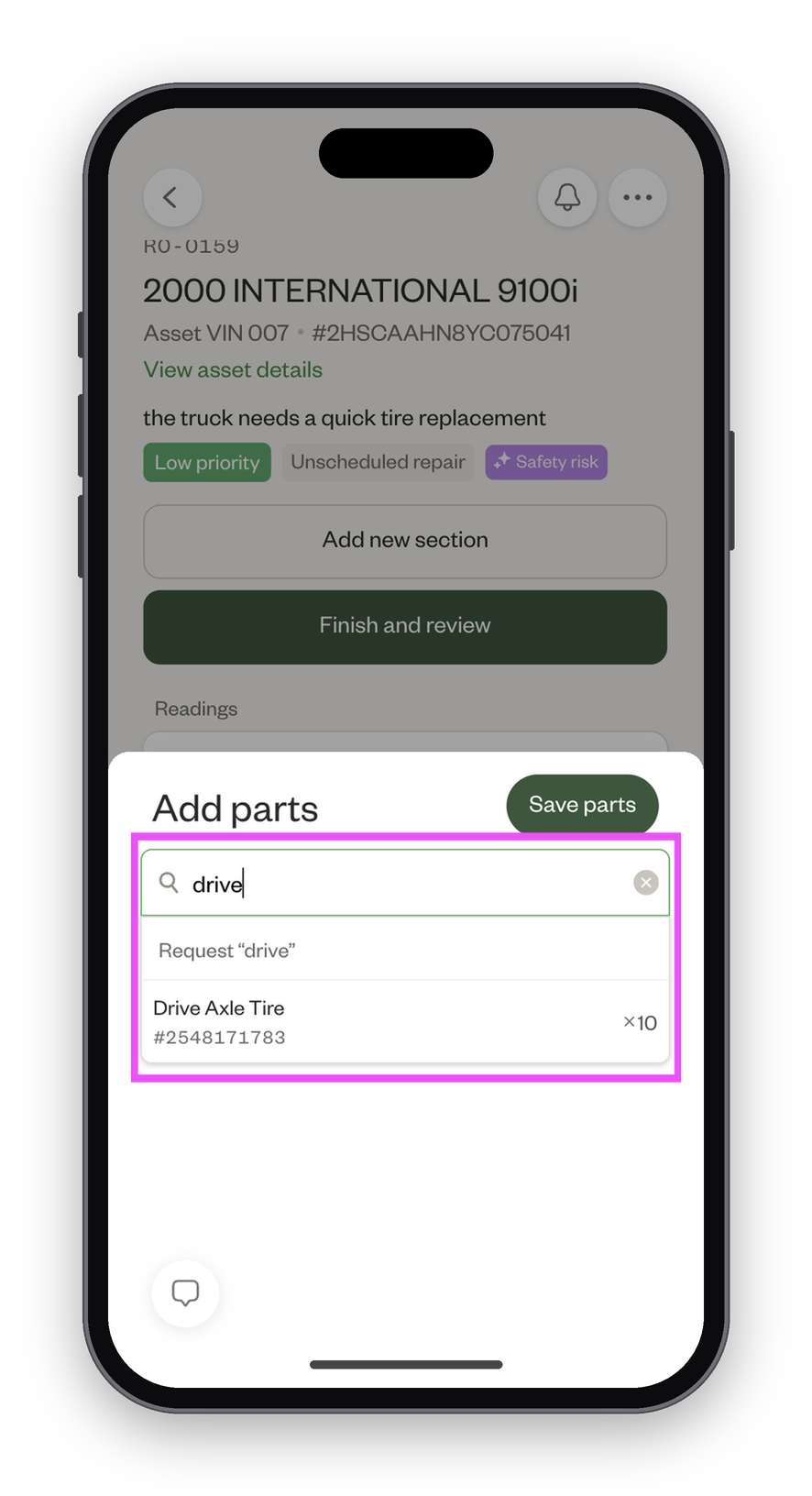
- Search for the part you want to add, and click to add it.
- Adjust the quantity as needed, then click "Save parts."
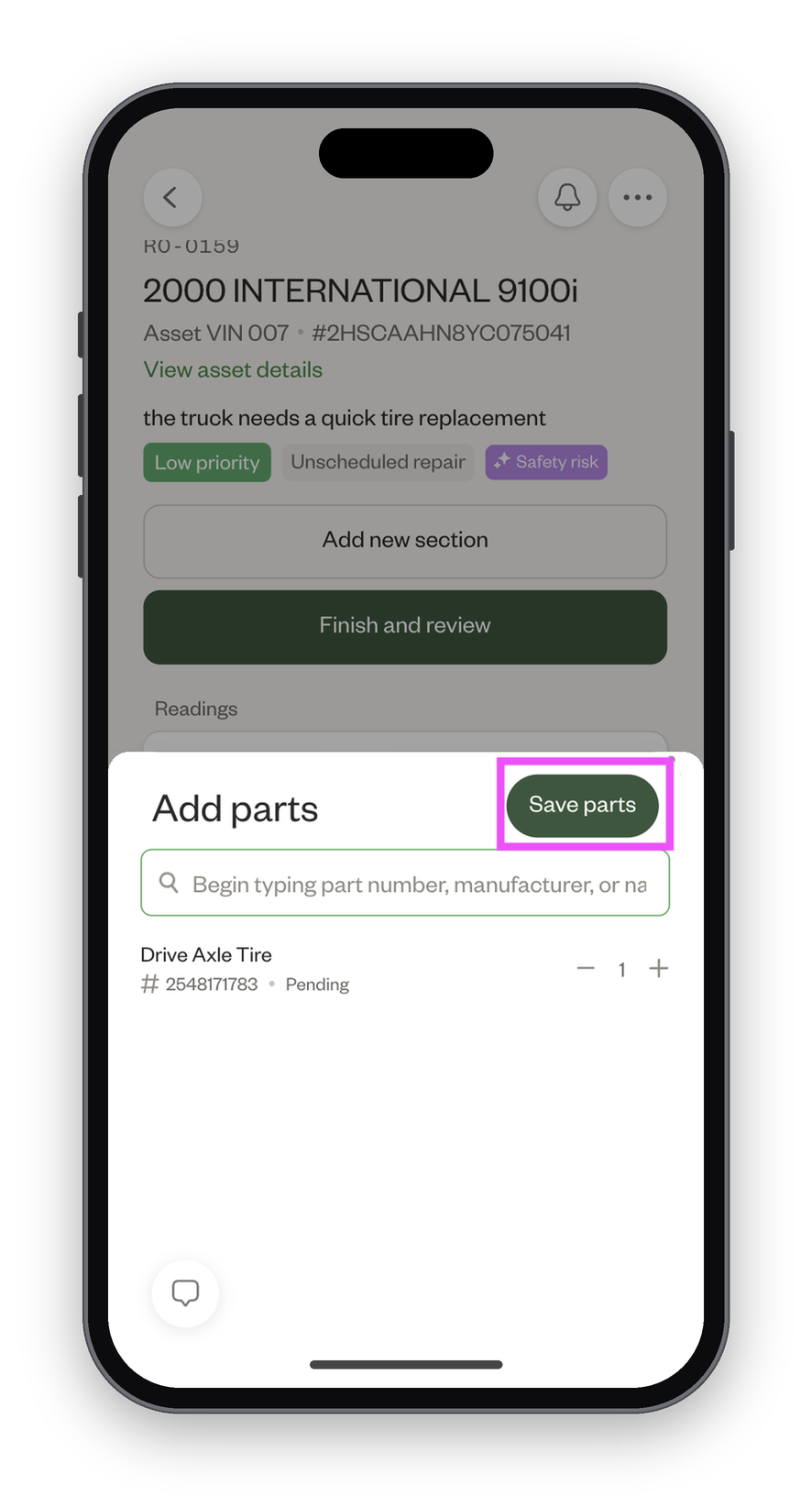
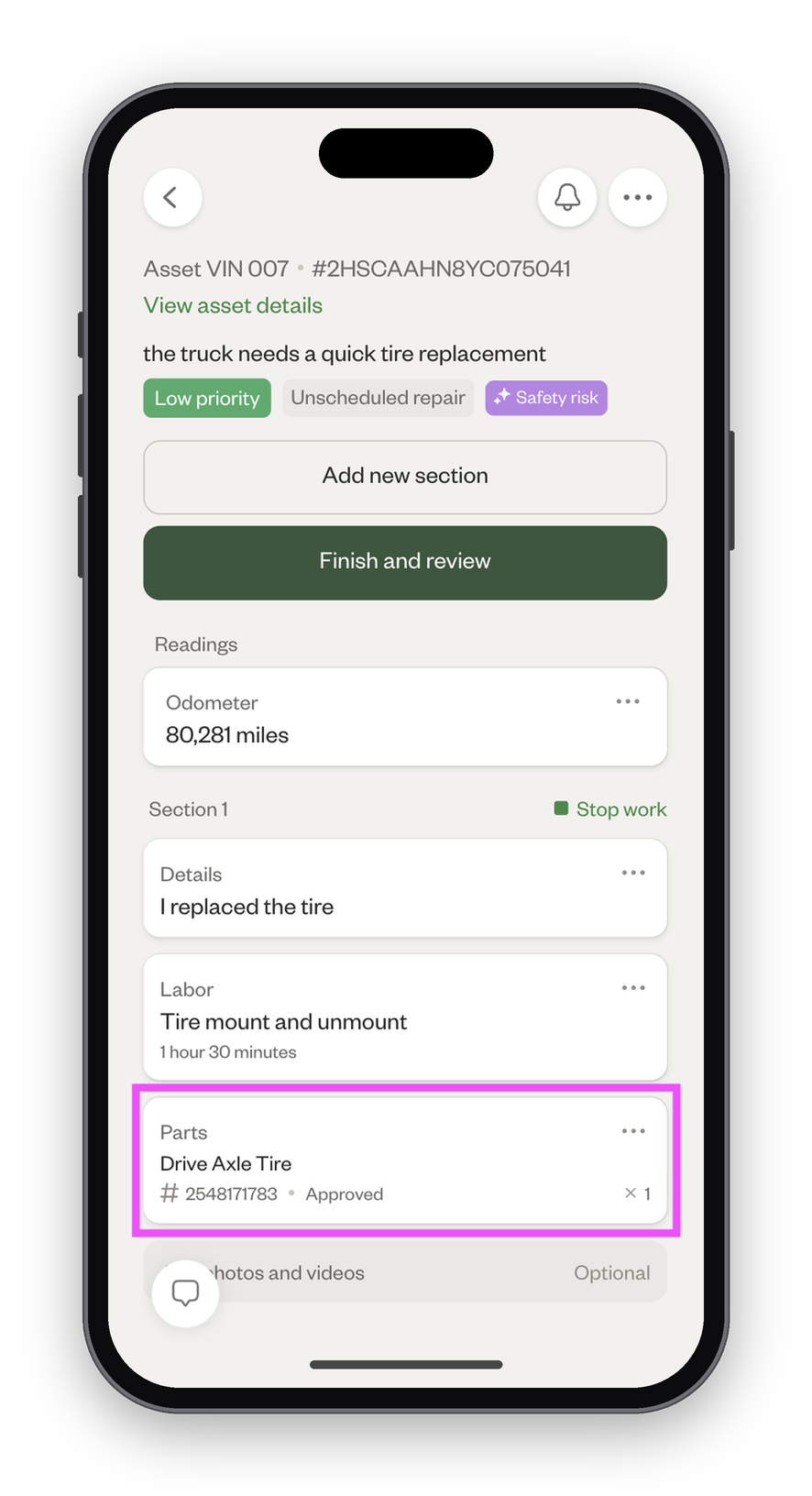
- The part request will show as "Pending" until an admin approves it.
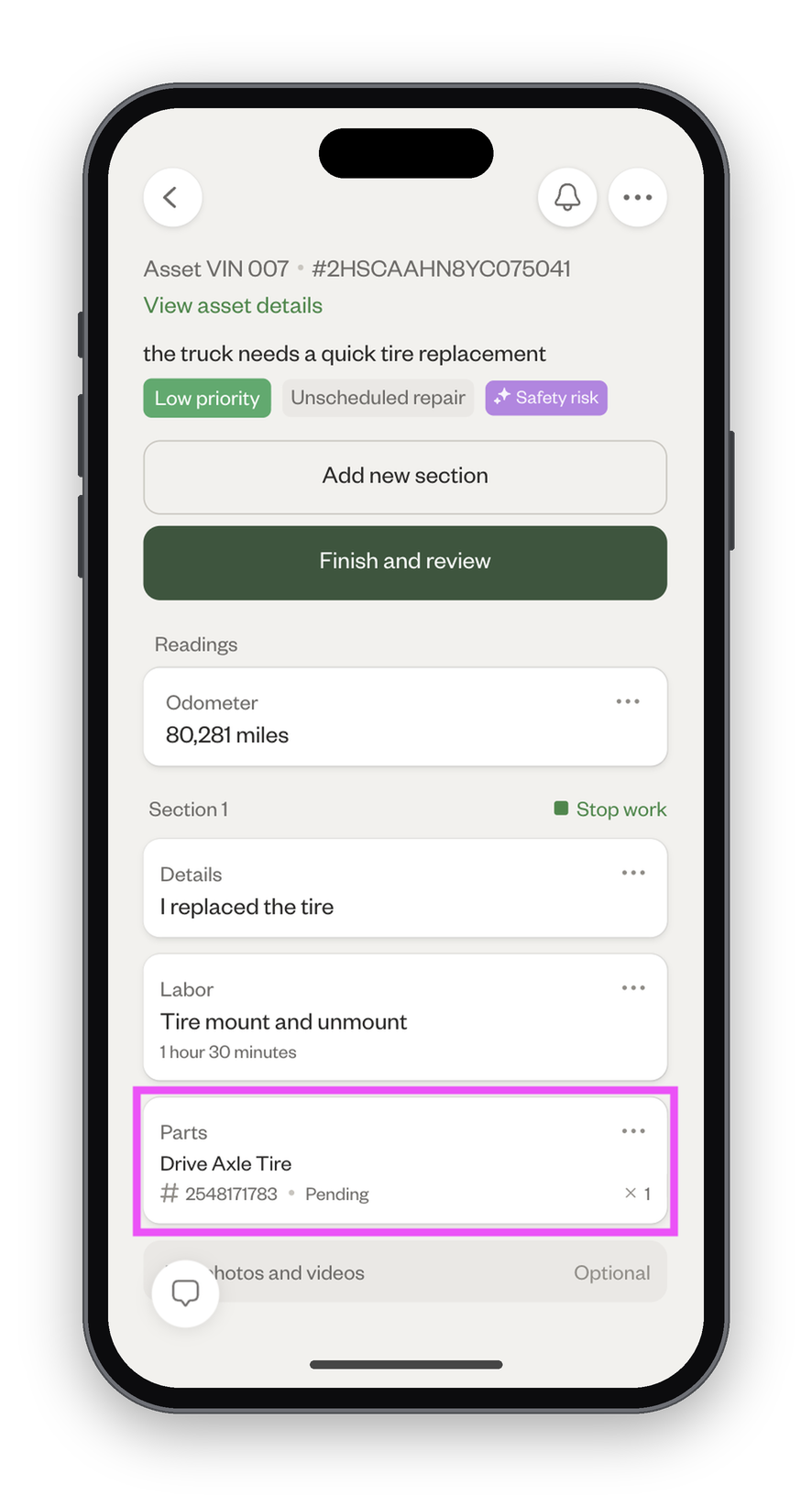
- Once approved, the part will show as "Approved."
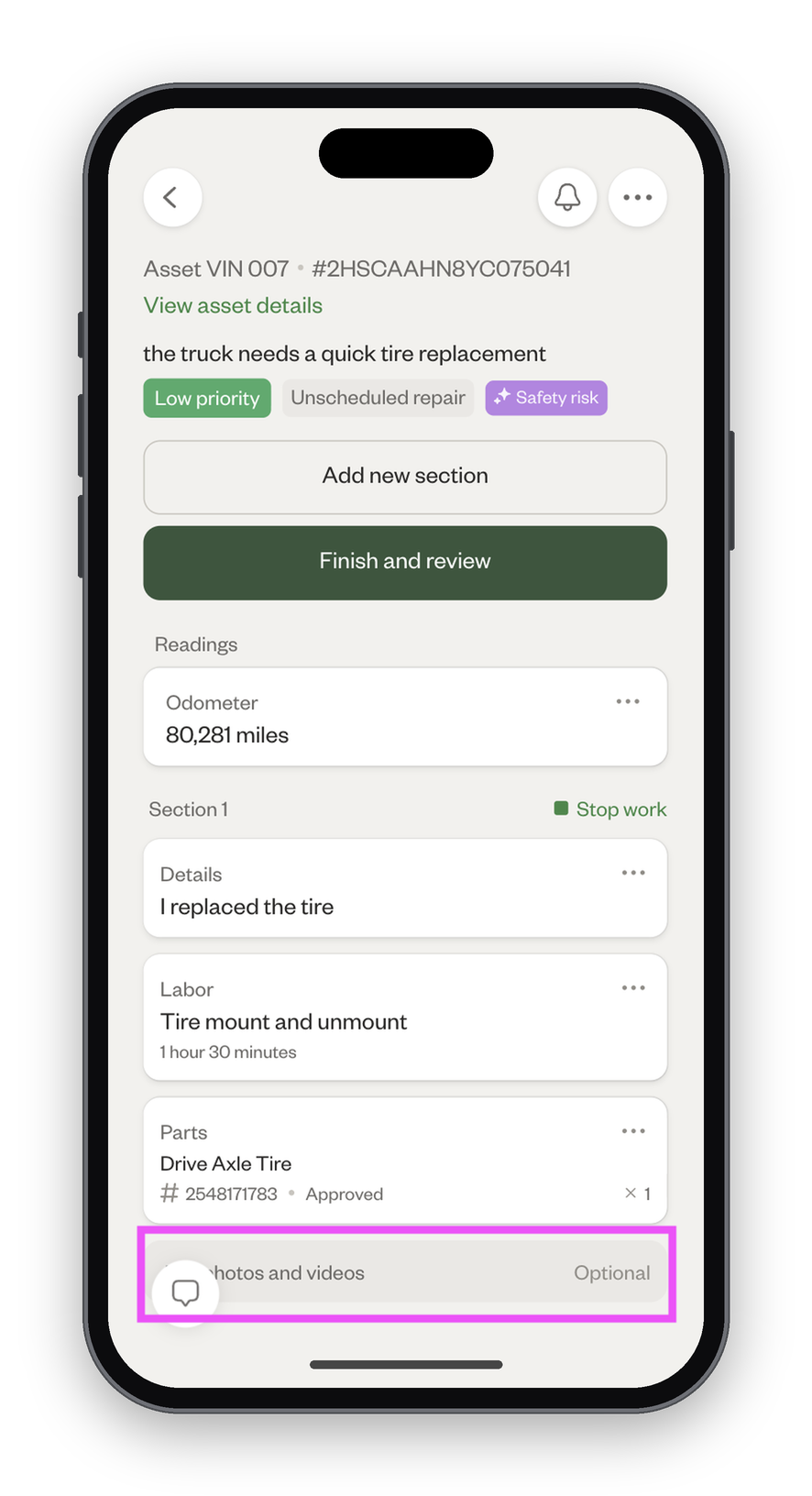
Add photos and videos
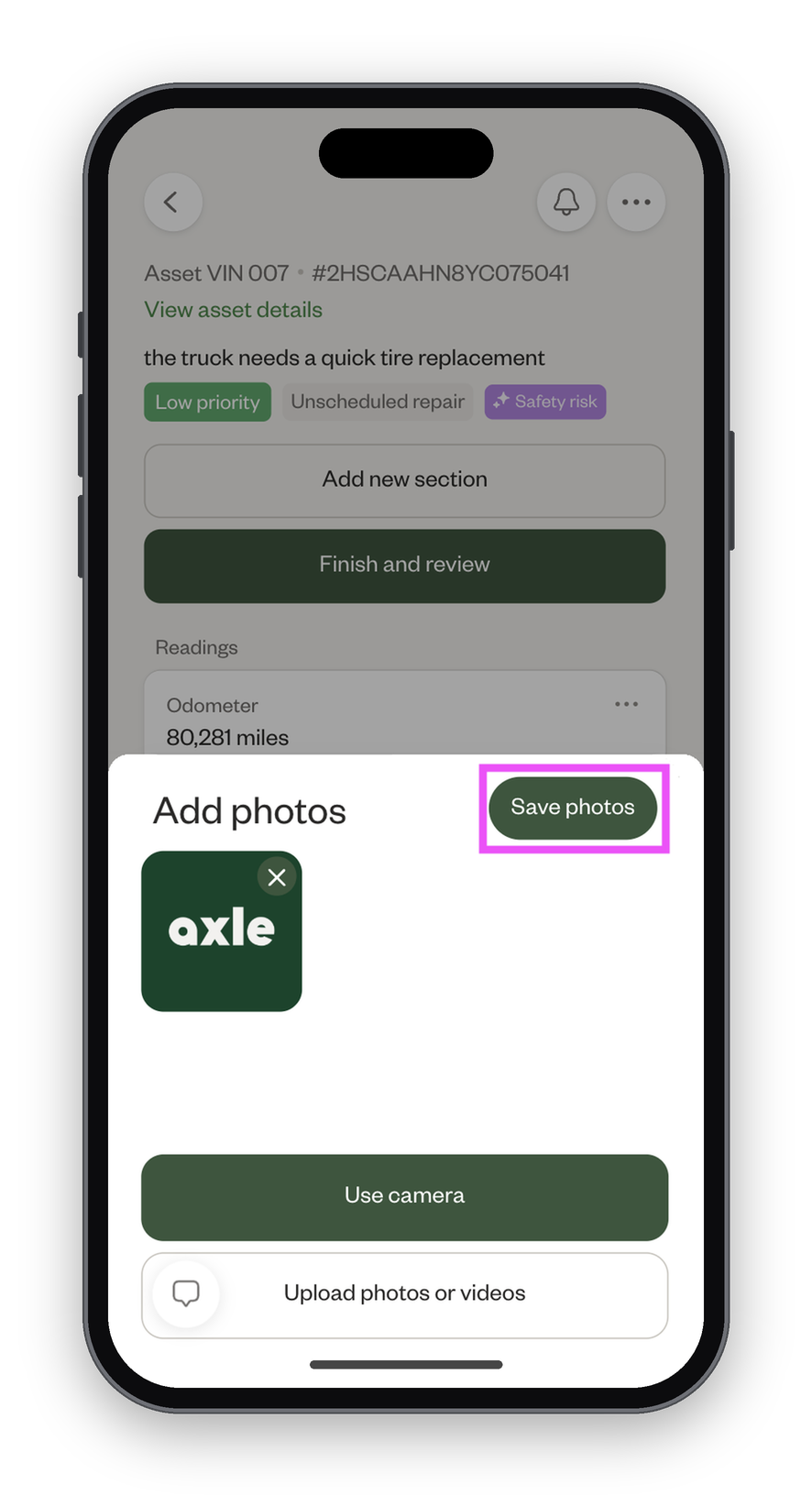
- Click "Add photos and videos."
- You can use your camera or upload photos and videos from your device.
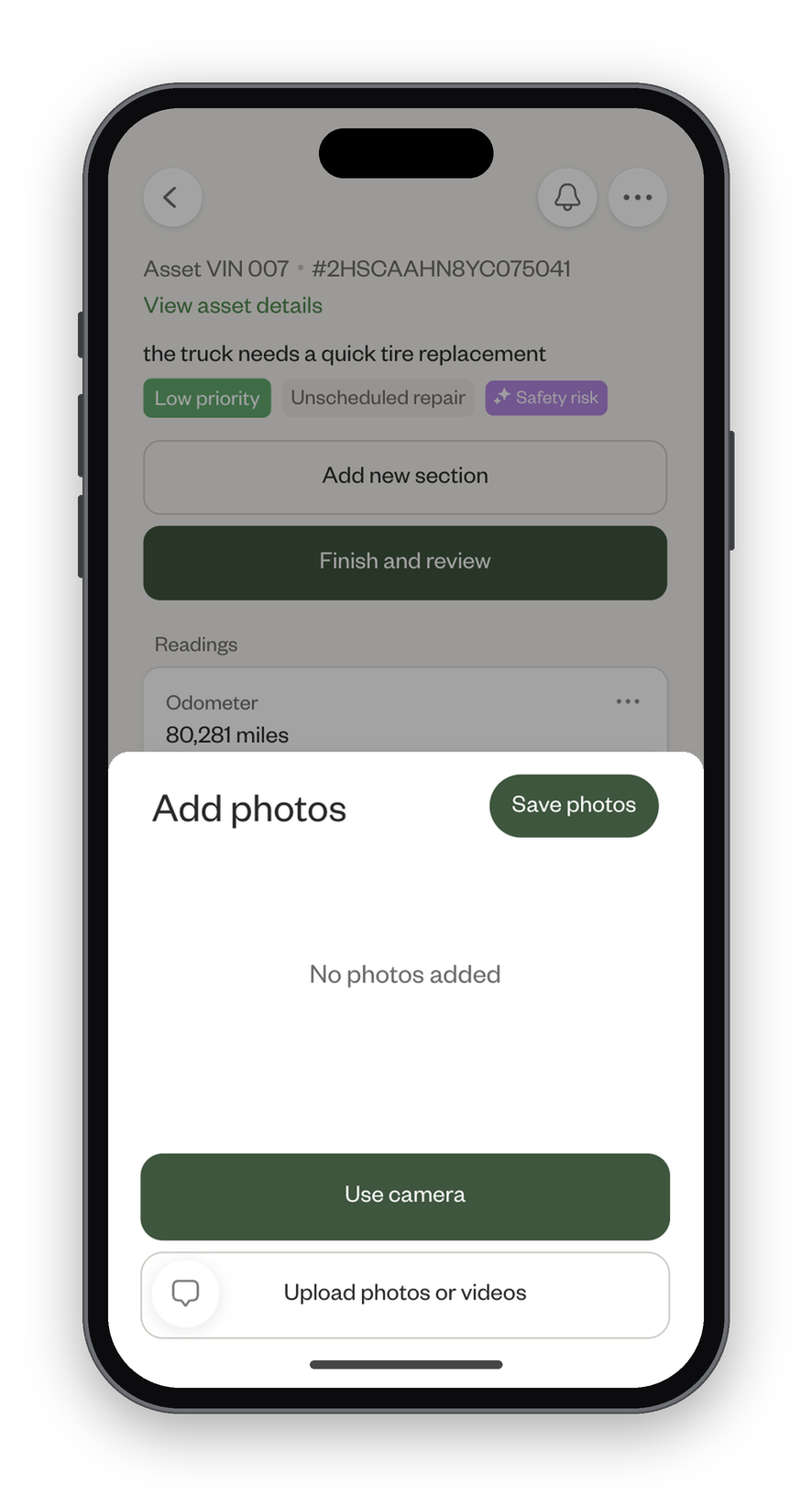
- Once you're finished adding photos and videos, click "Save photos."
Did this answer your question?
Thanks for the feedback
There was a problem submitting your feedback. Please try again later.
No results found

