
Getting started in Pocket Tech
Welcome to Pocket Tech! This is how technicians on the floor complete repair orders in Axle.
1) Sign in to Axle
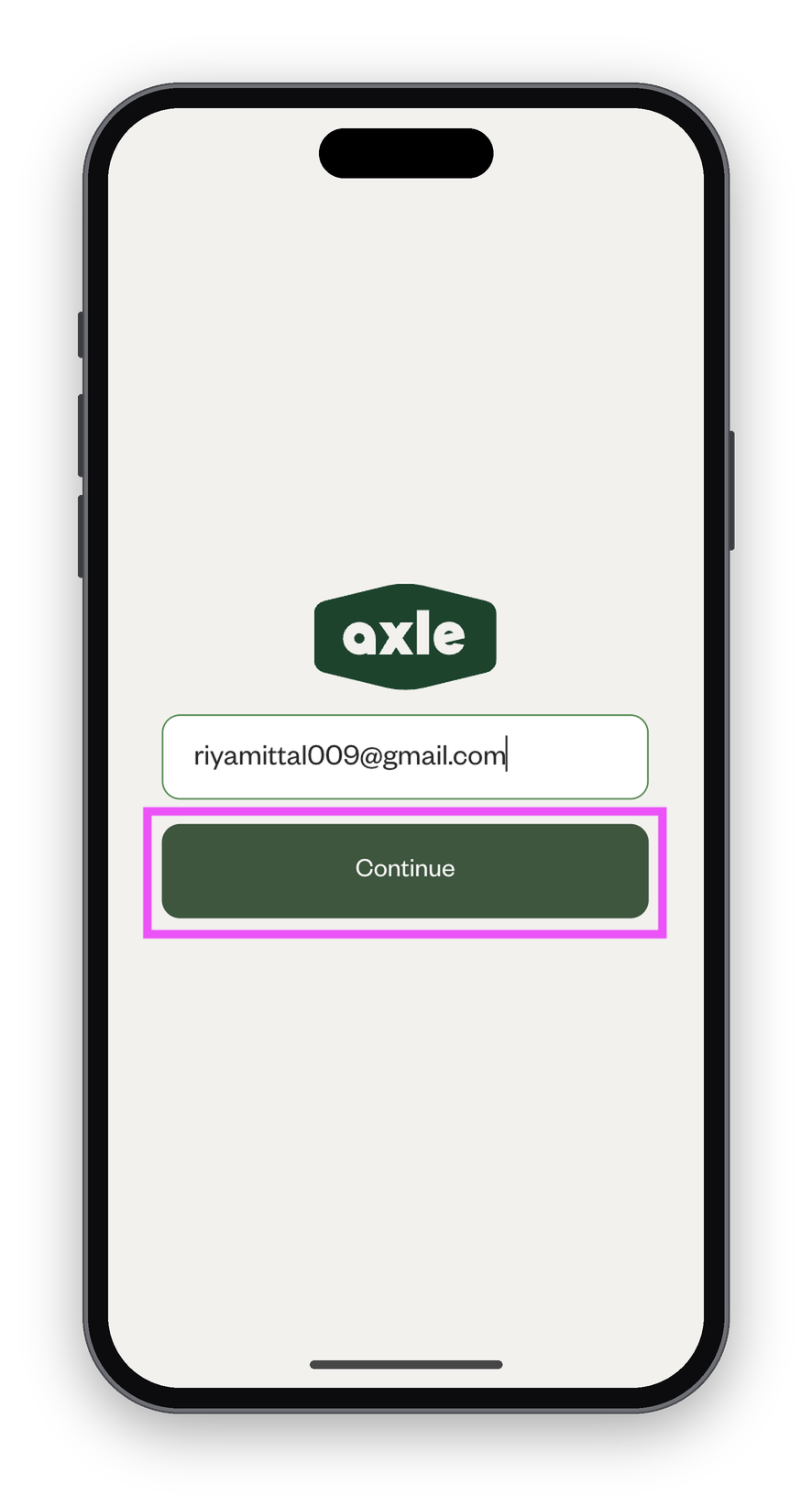
- Go to app.axlemobility.com and enter your email, then click "Continue."
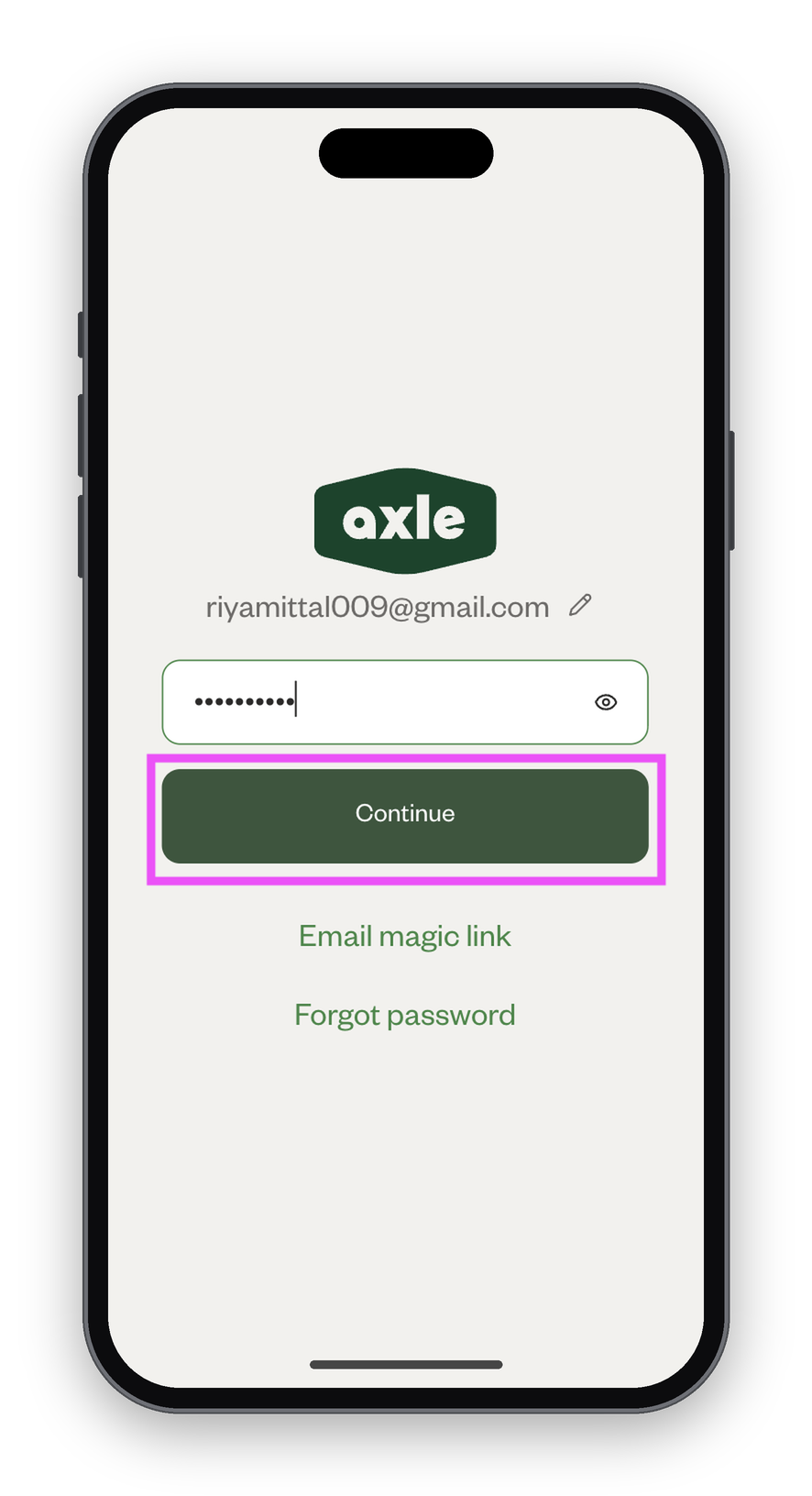
- Enter your password, then click "Continue."
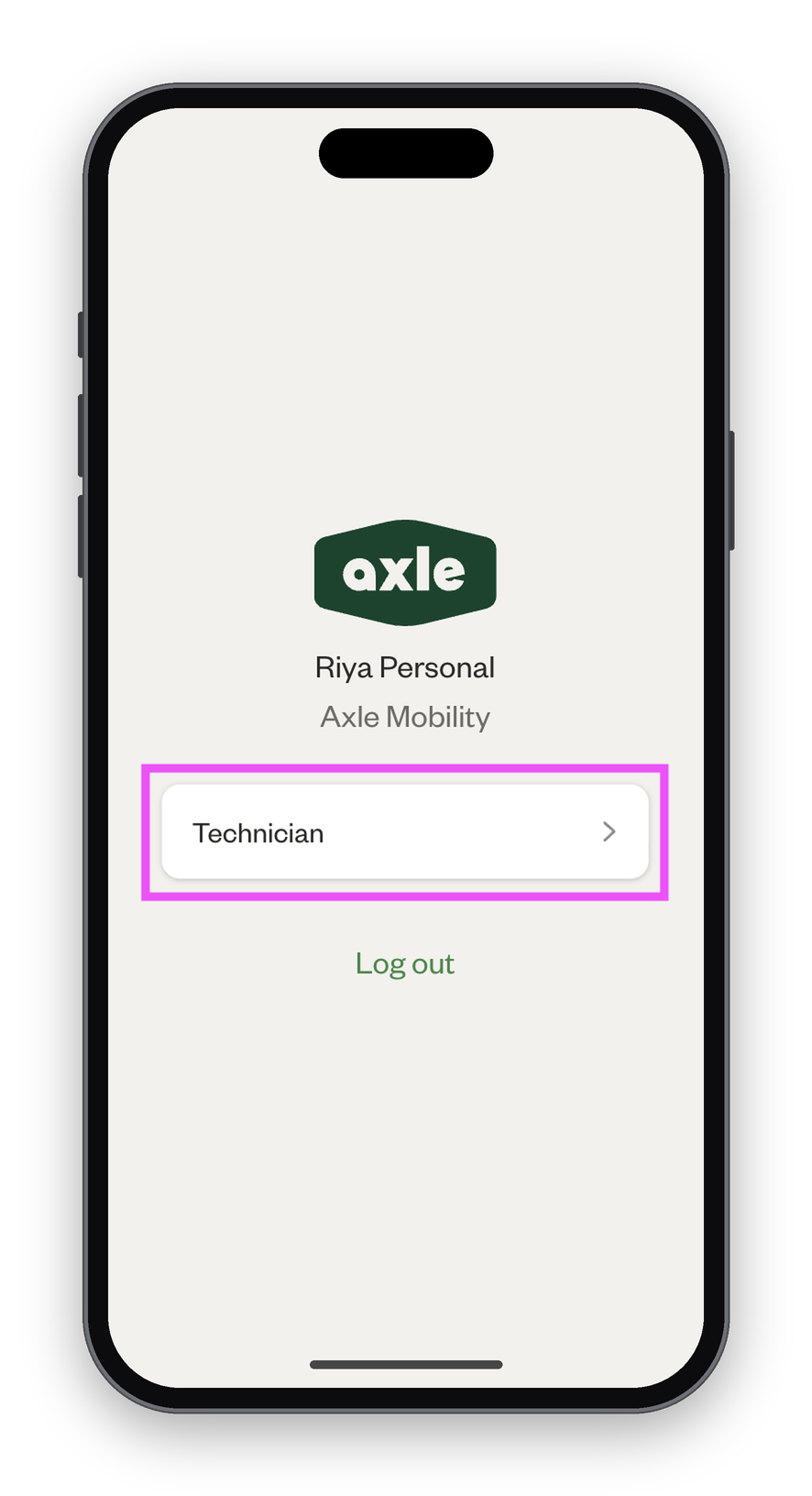
- Click "Technician" to enter Pocket Tech.
2) Find assigned repair
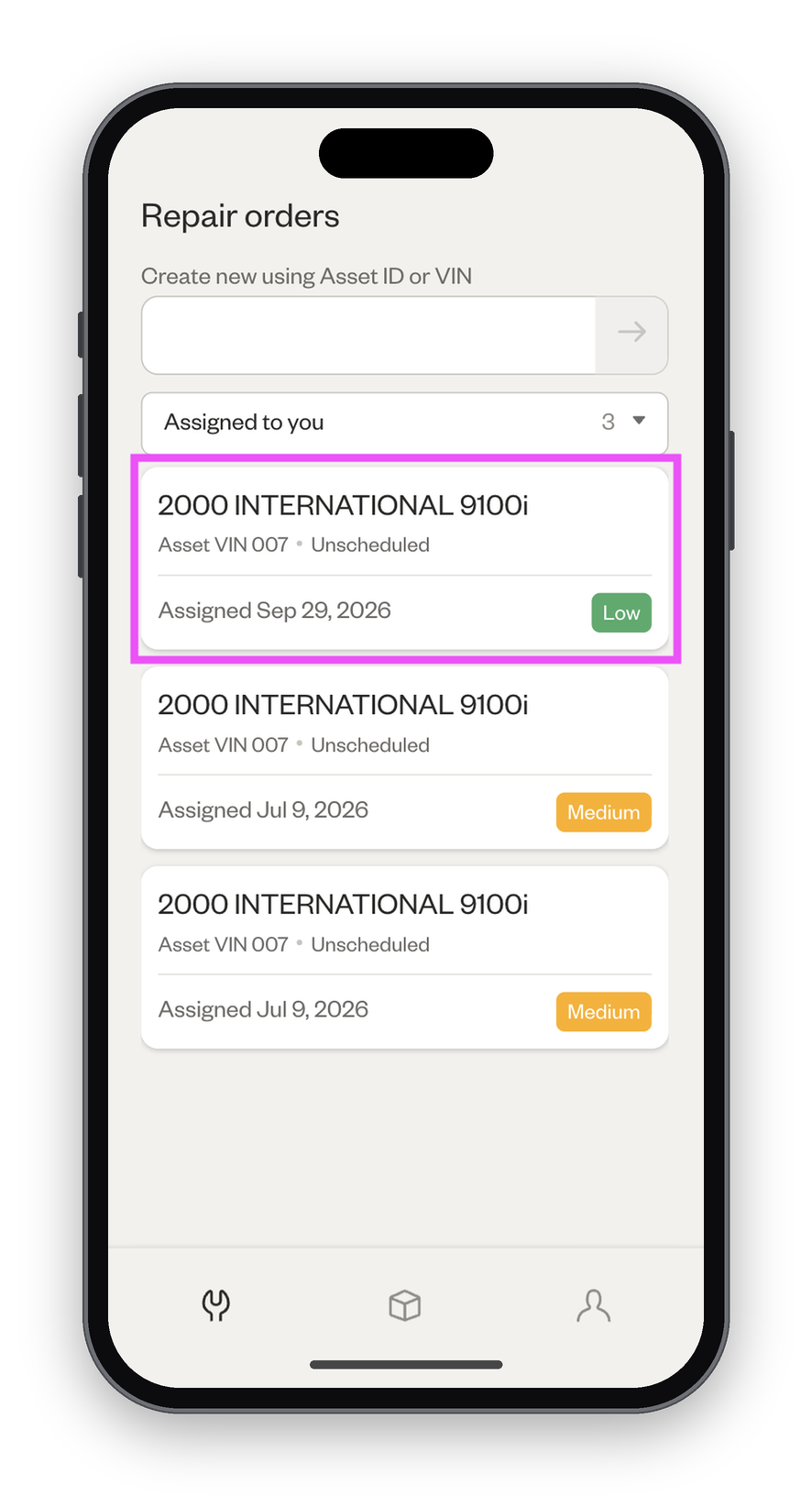
In Pocket Tech, you'll see a dashboard of repair orders assigned to you. Click one to get started on the repair.
3) Work on repair order
Add repair notes
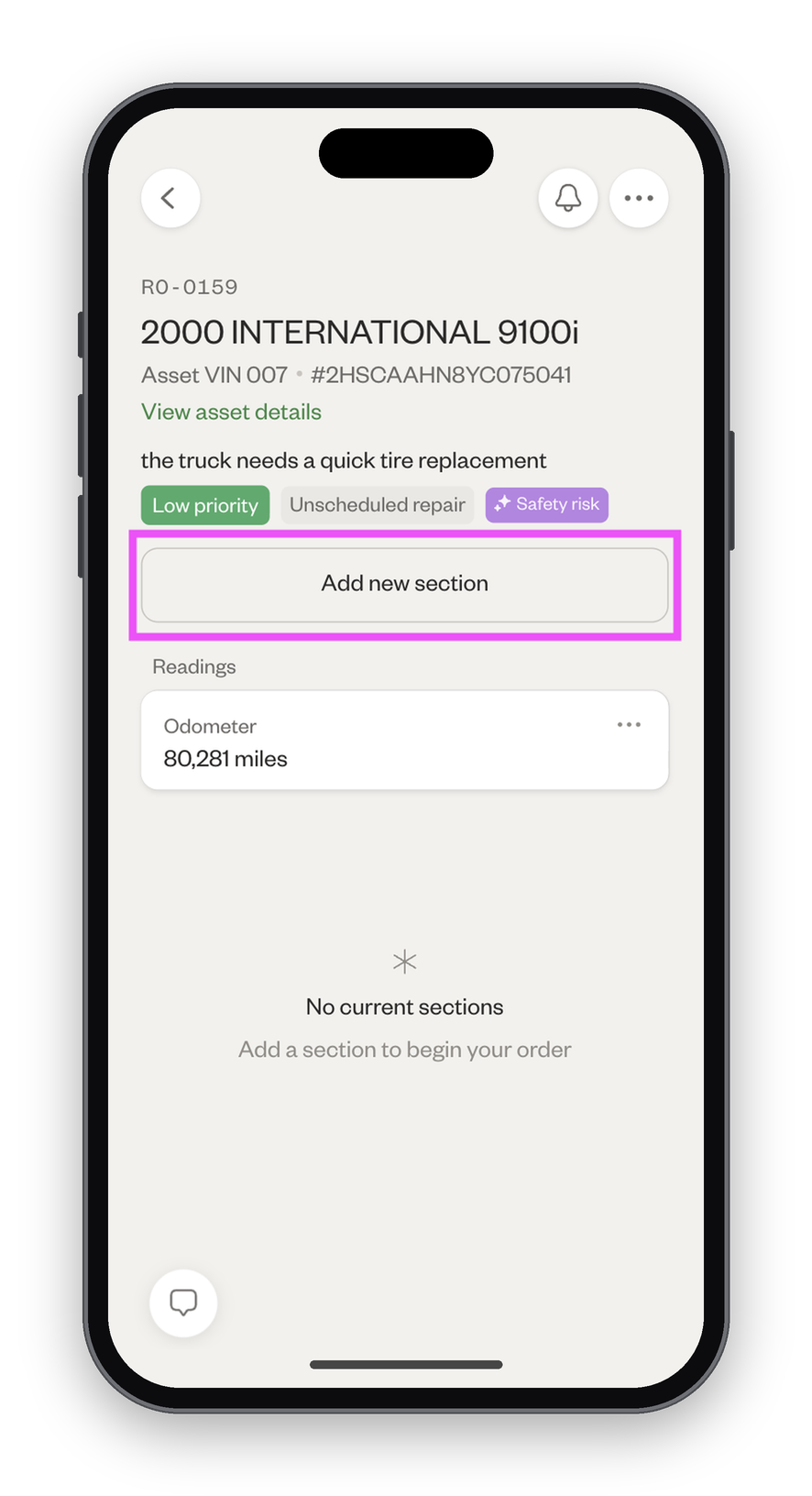
- Click "Add section" to get started.
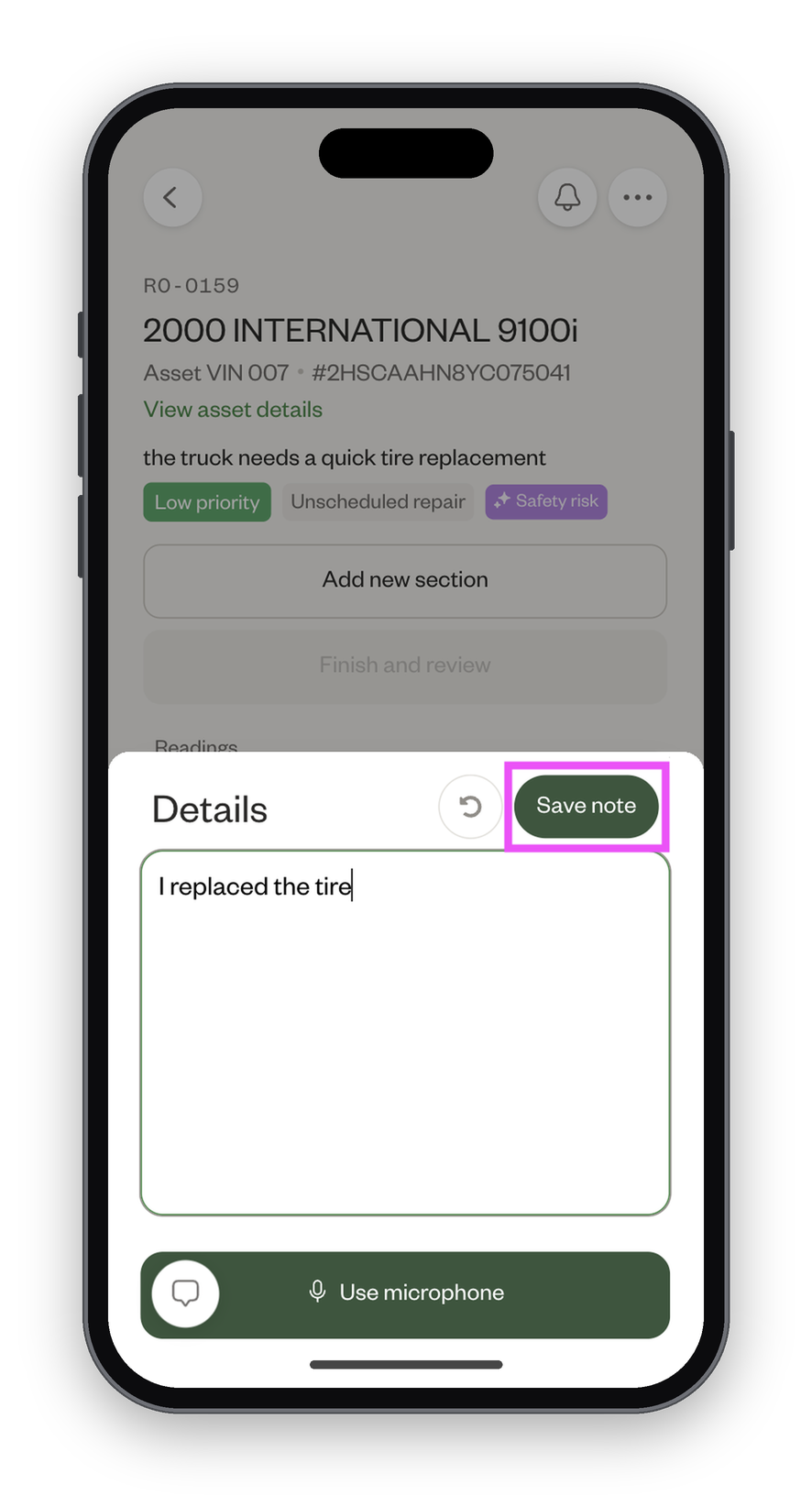
- Enter your repair note, then click "Save notes."
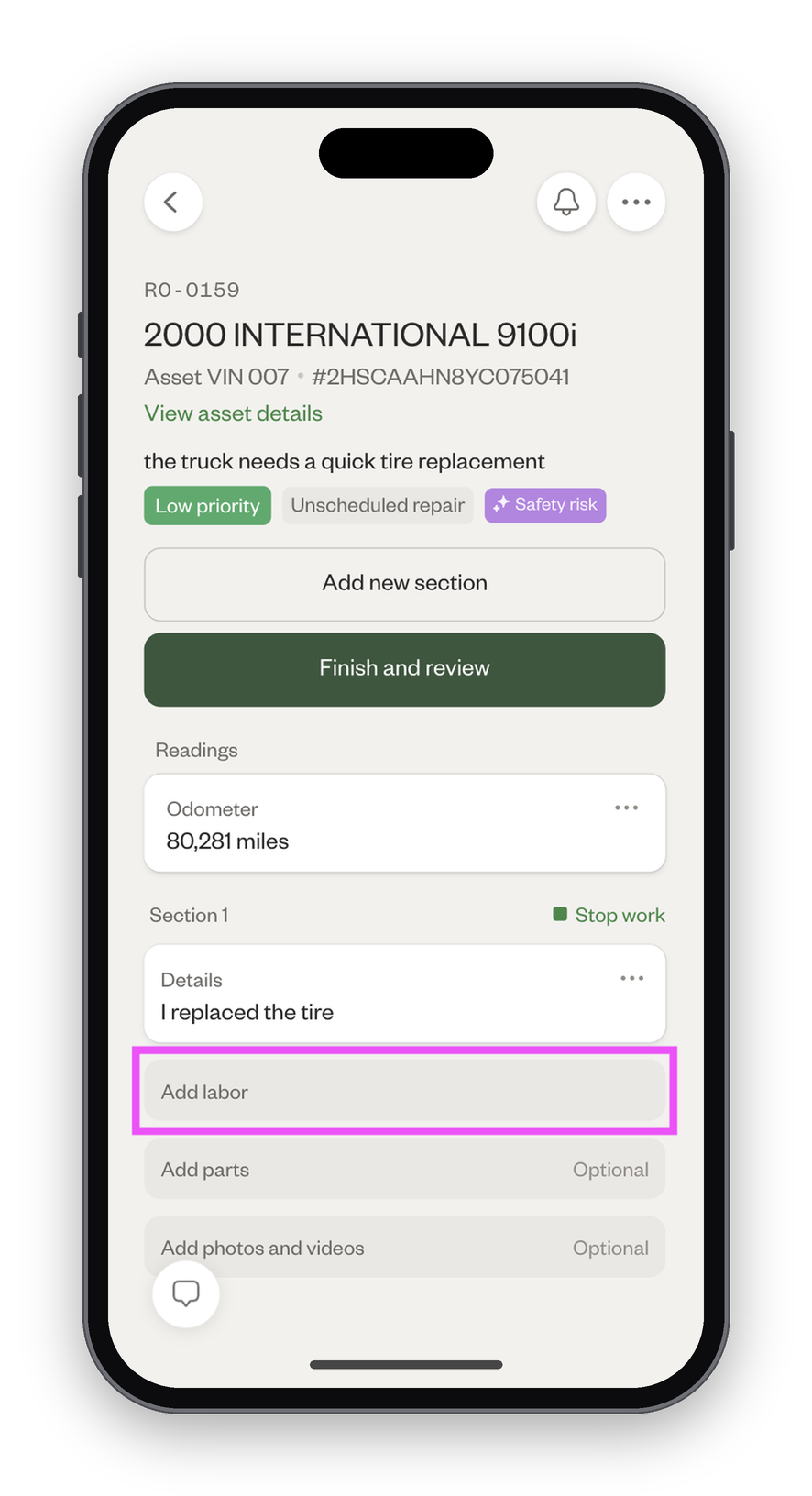
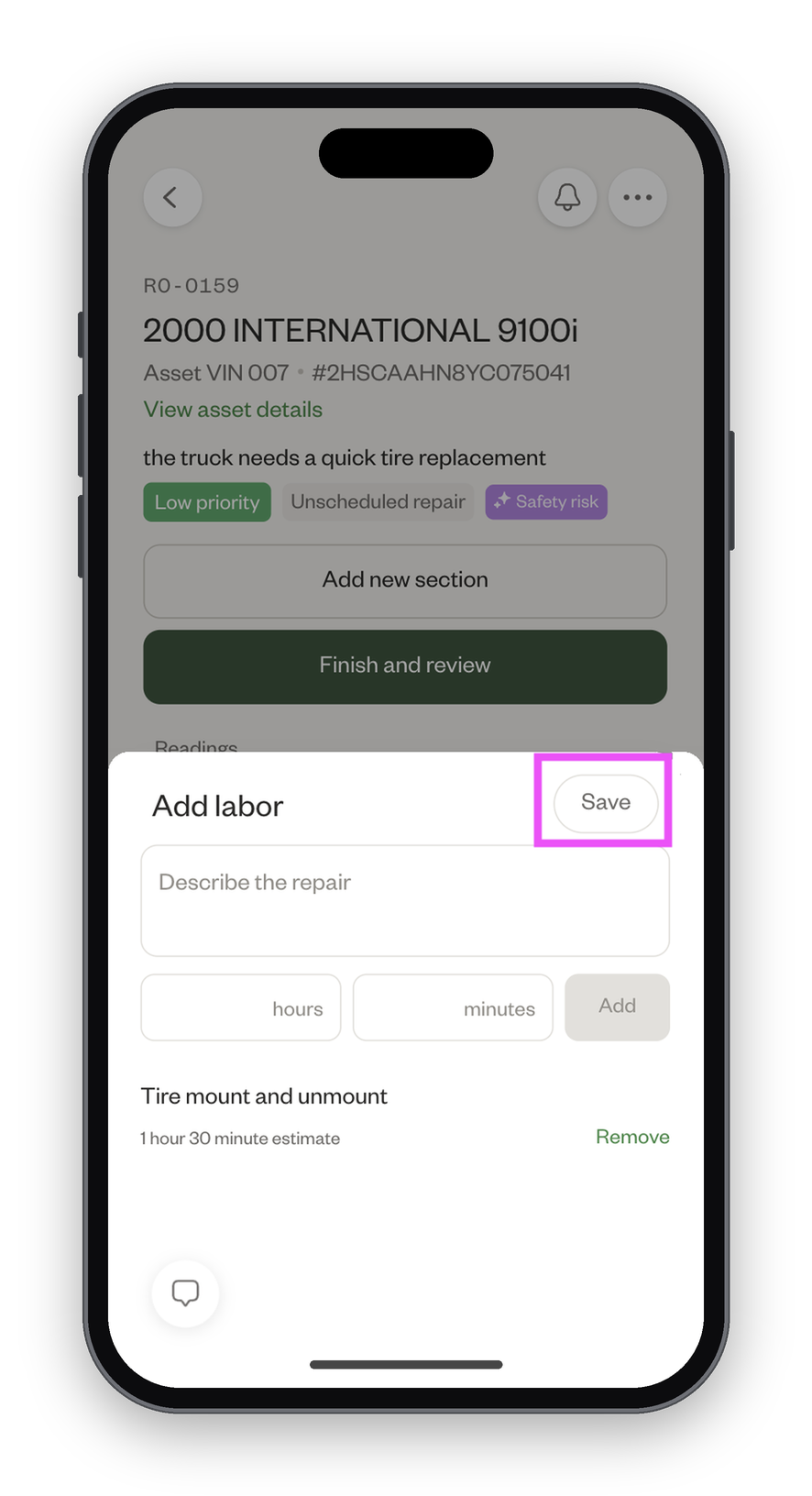
Add labor
- Click "Add labor."
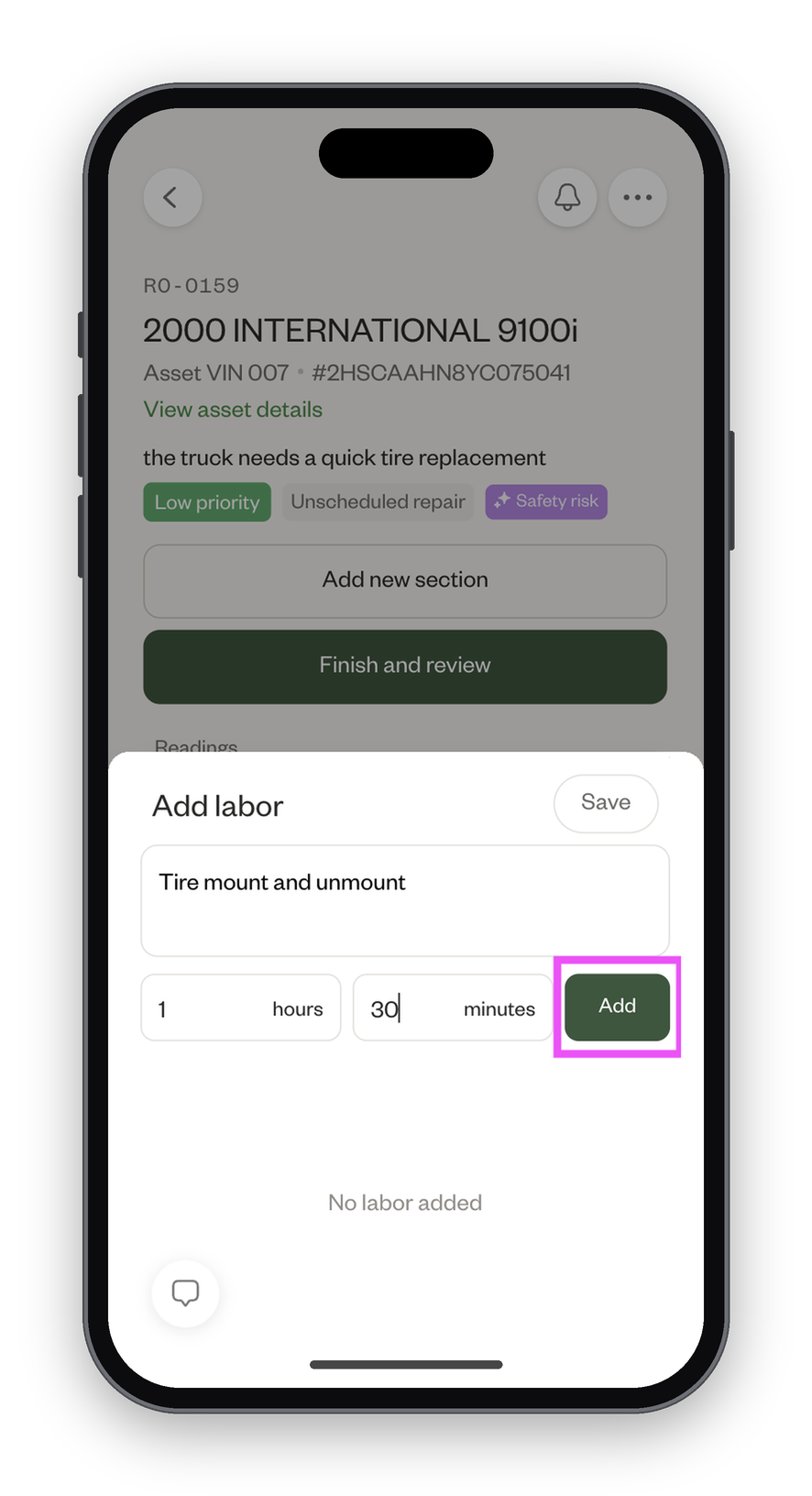
- Add a description of the labor you performed. Optionally, enter the time it took to complete that labor. Then, click "Add."
- When you're done recording labor, click "Save."
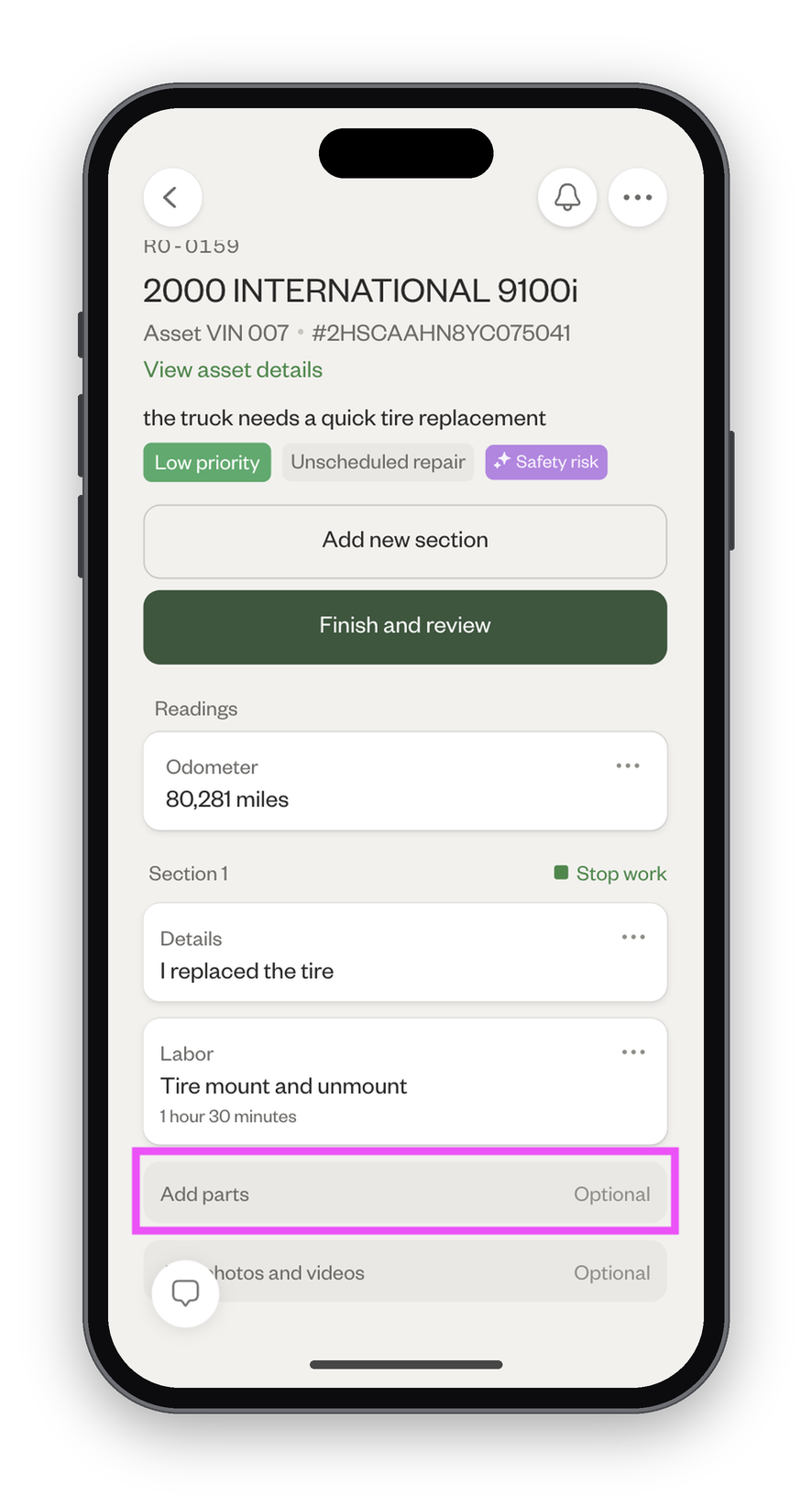
Add parts
- Click "Add parts."
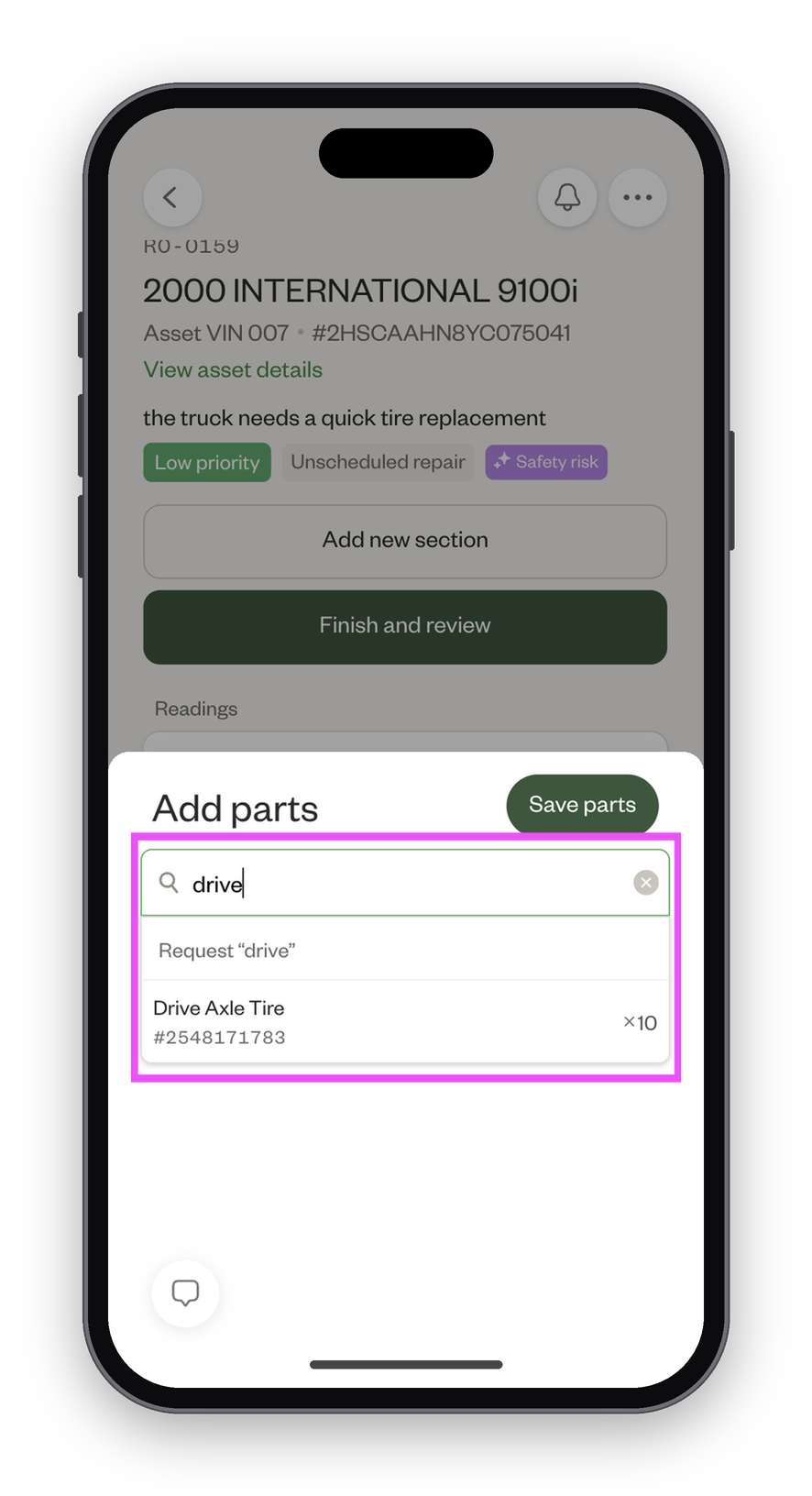
- Search for the part you want to add, and click to add it.
- Adjust the quantity as needed, then click "Save parts."
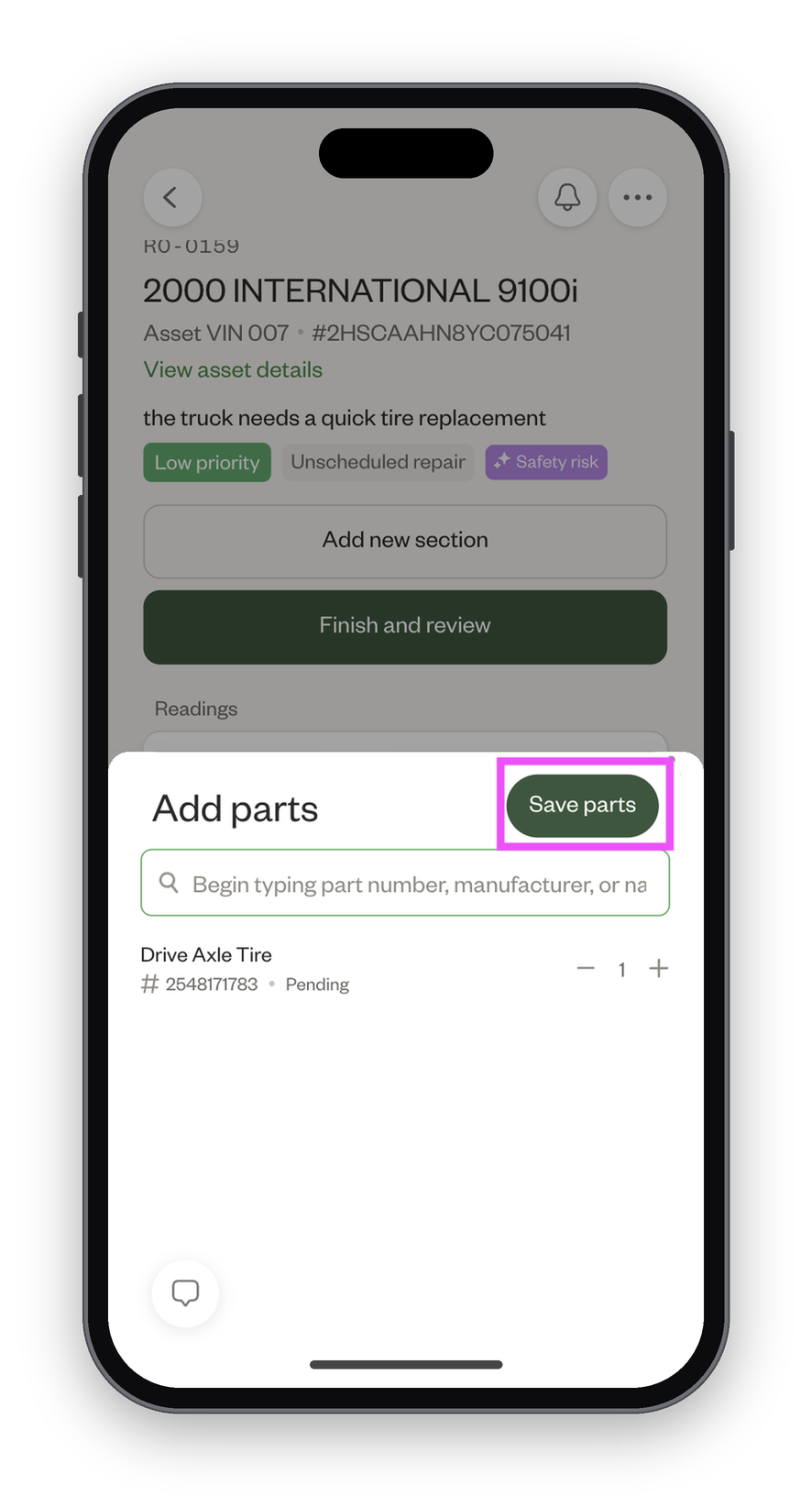
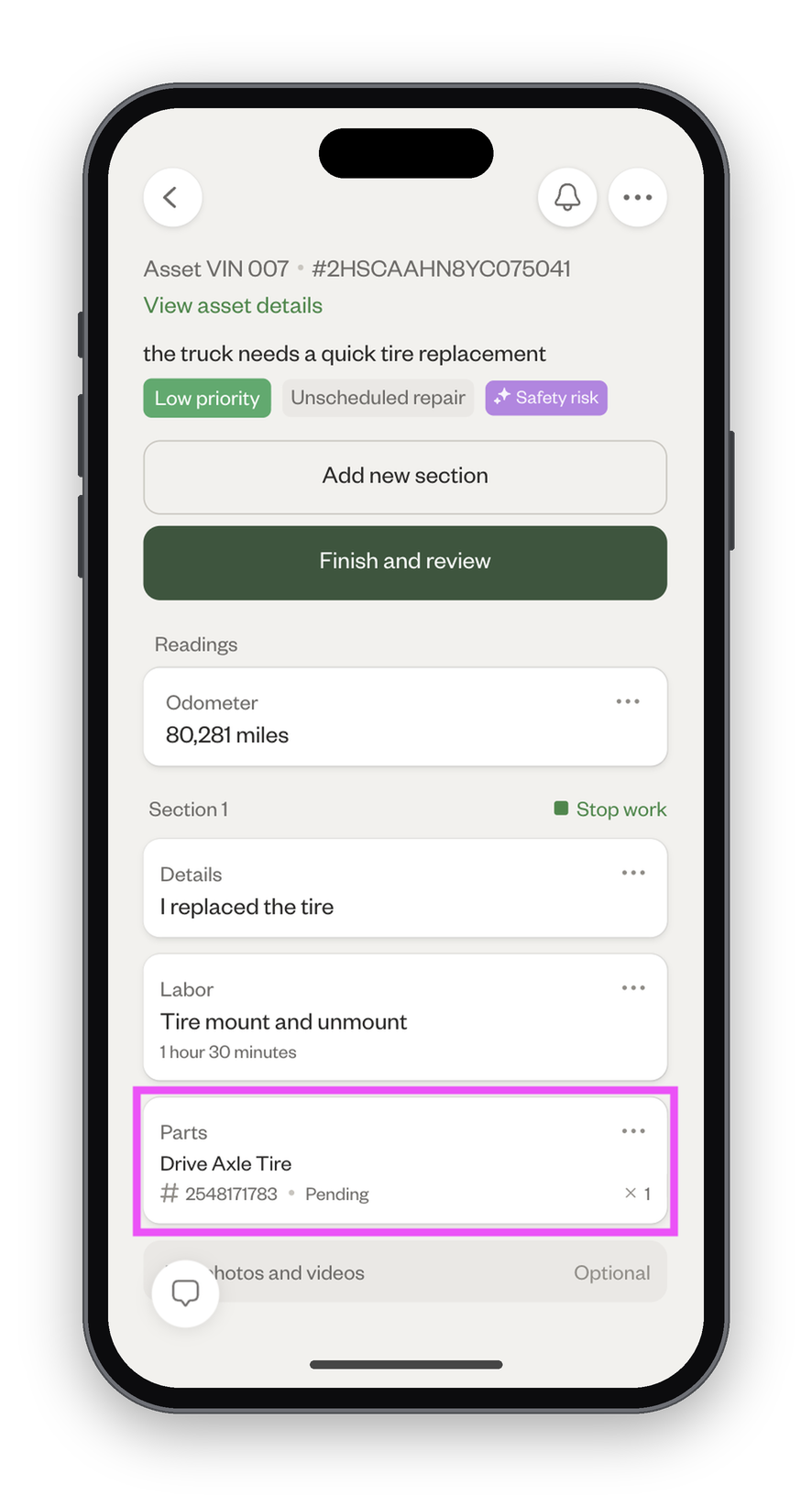
- The part request will show as "Pending" until an admin approves it.
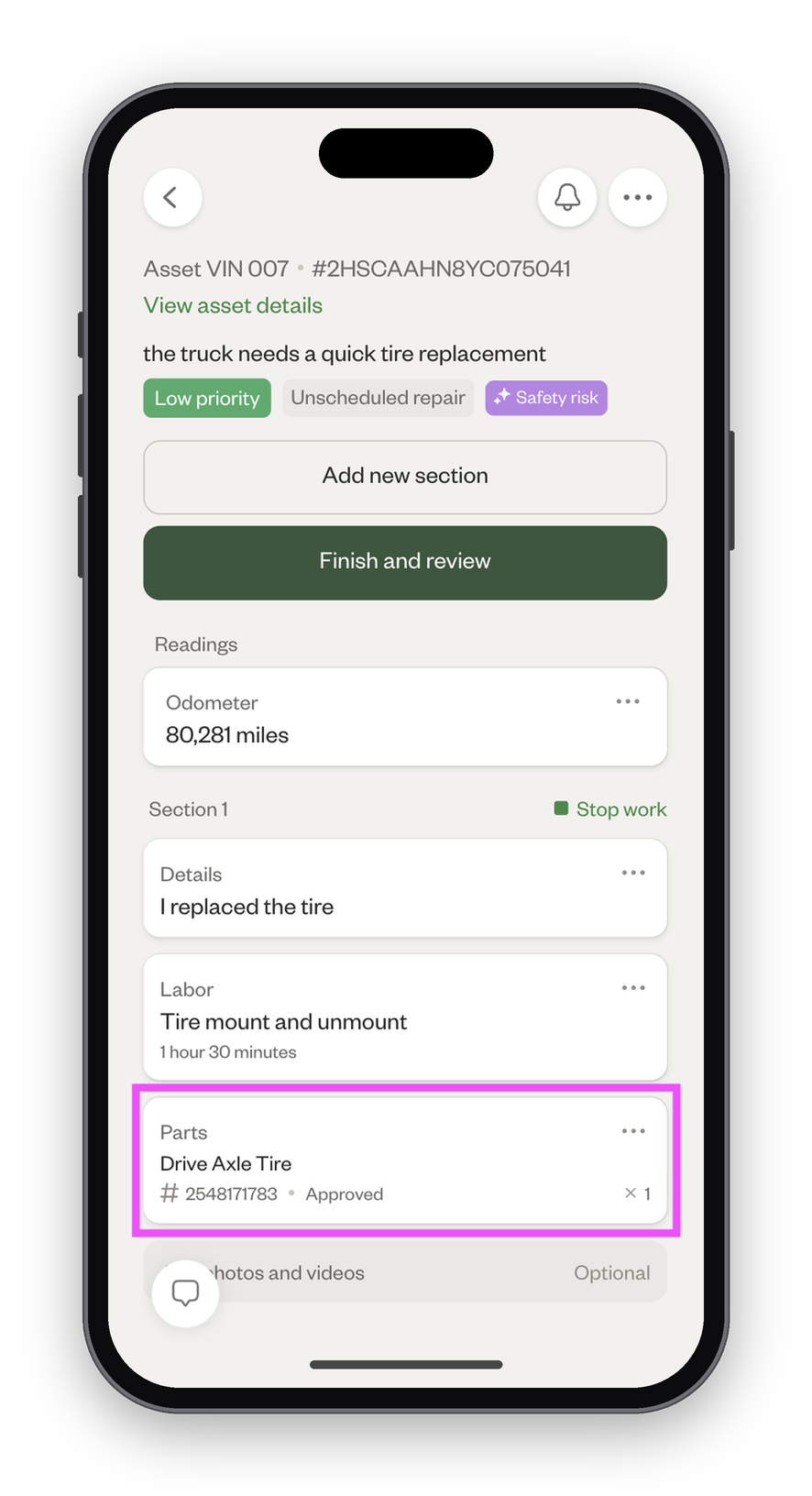
- Once approved, the part will show as "Approved."
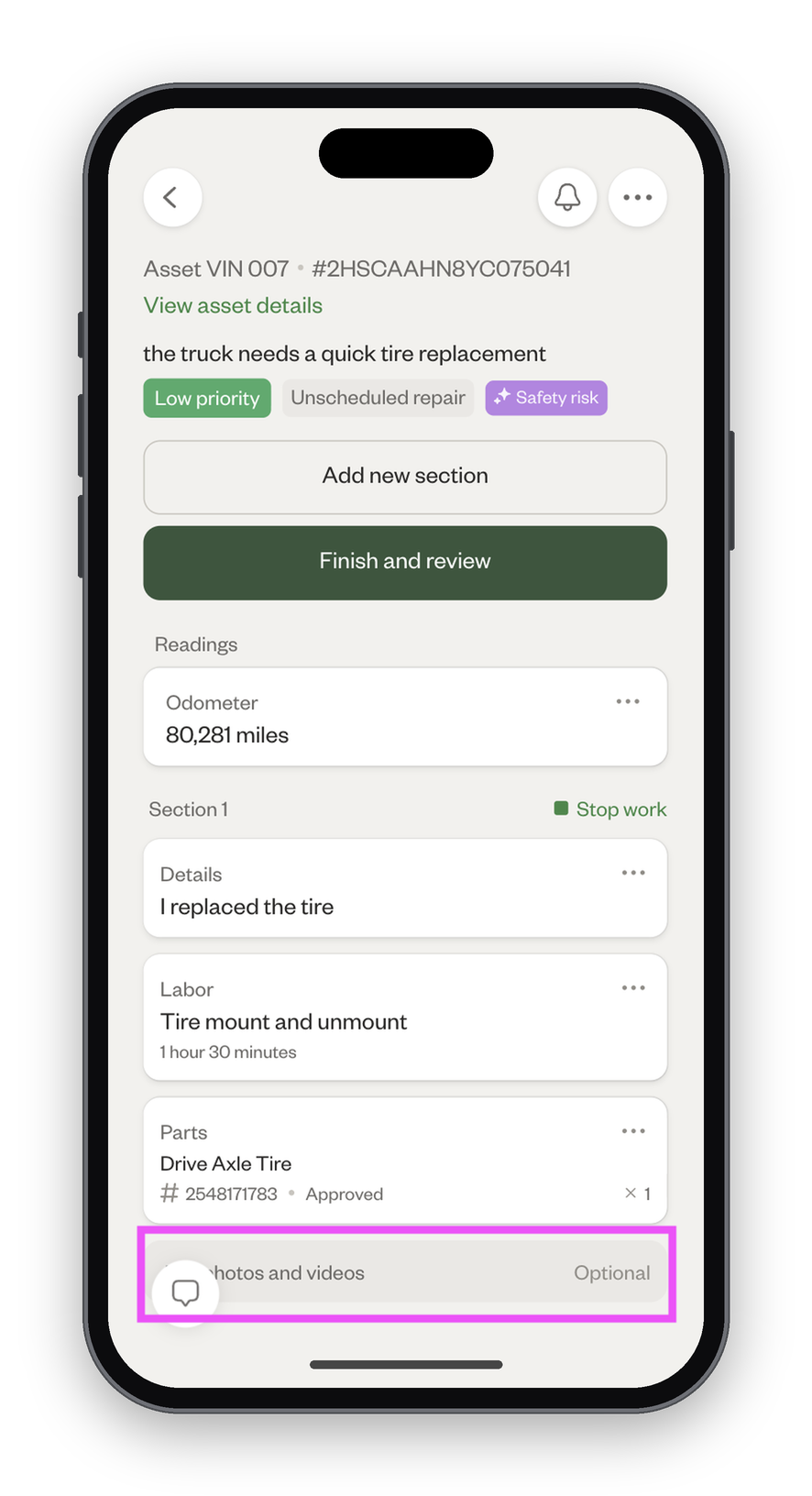
Add photos and videos
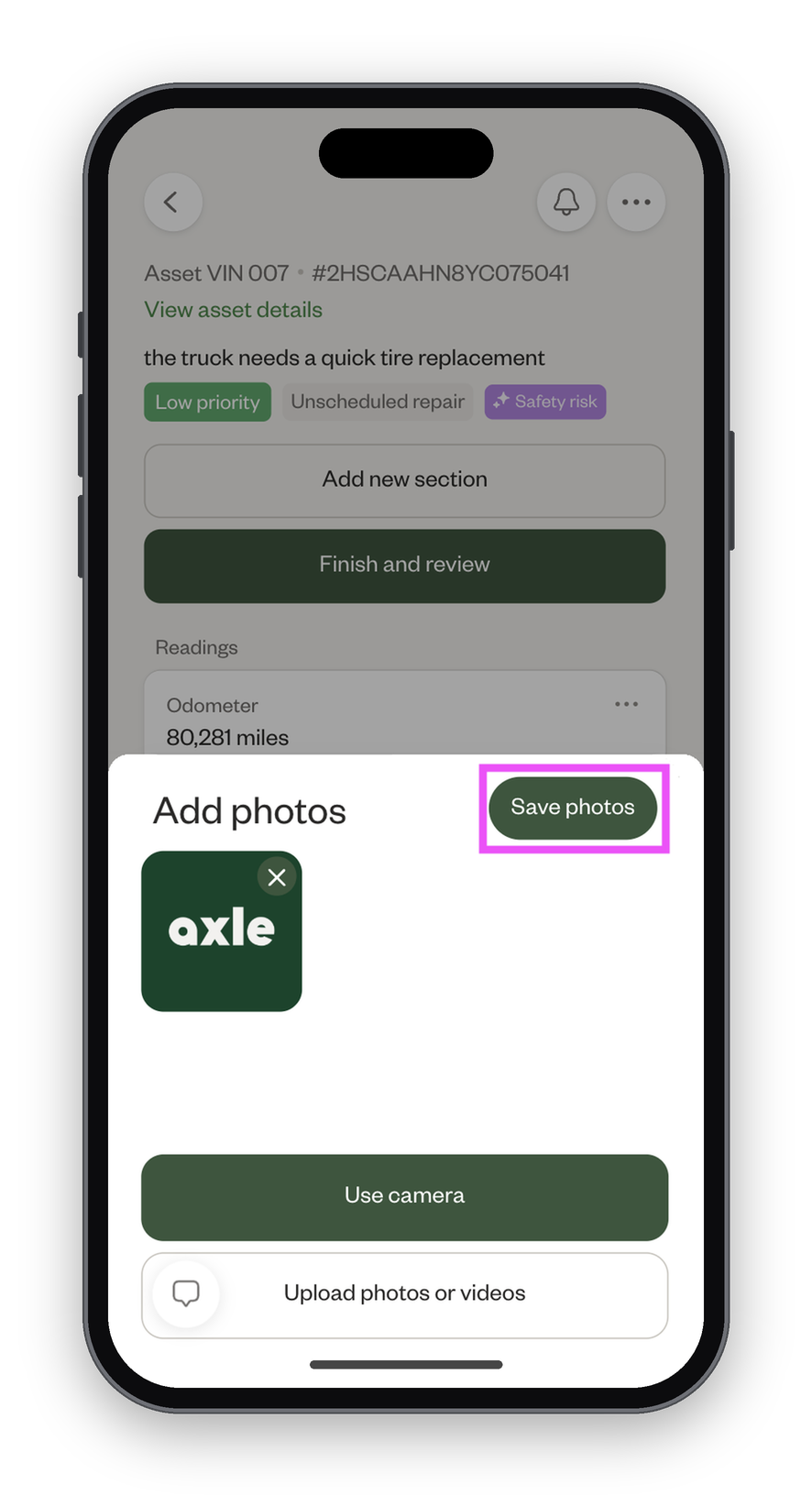
- Click "Add photos and videos."
- You can use your camera or upload photos and videos from your device.
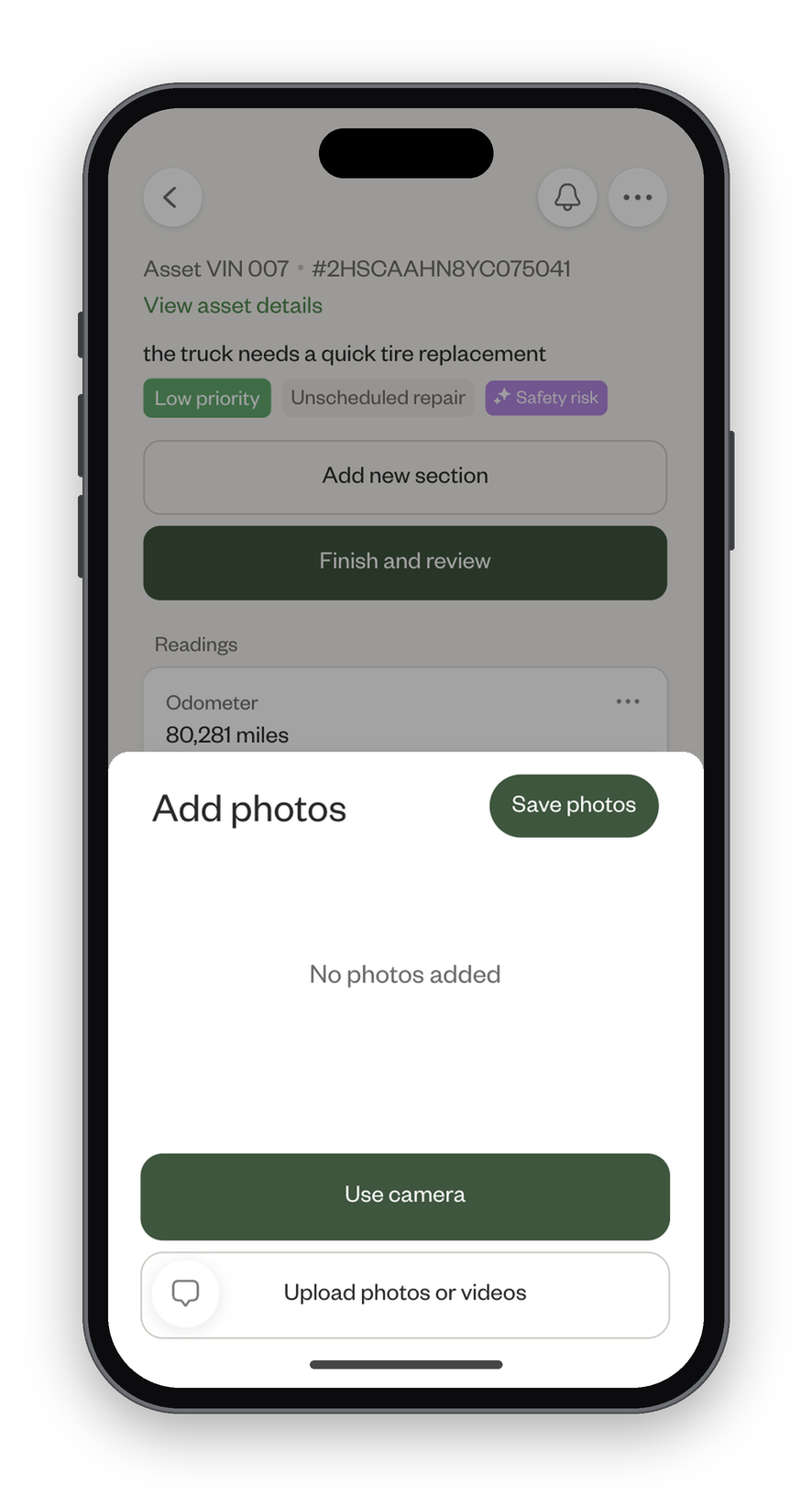
- Once you're finished adding photos and videos, click "Save photos."
4) Submit repair order
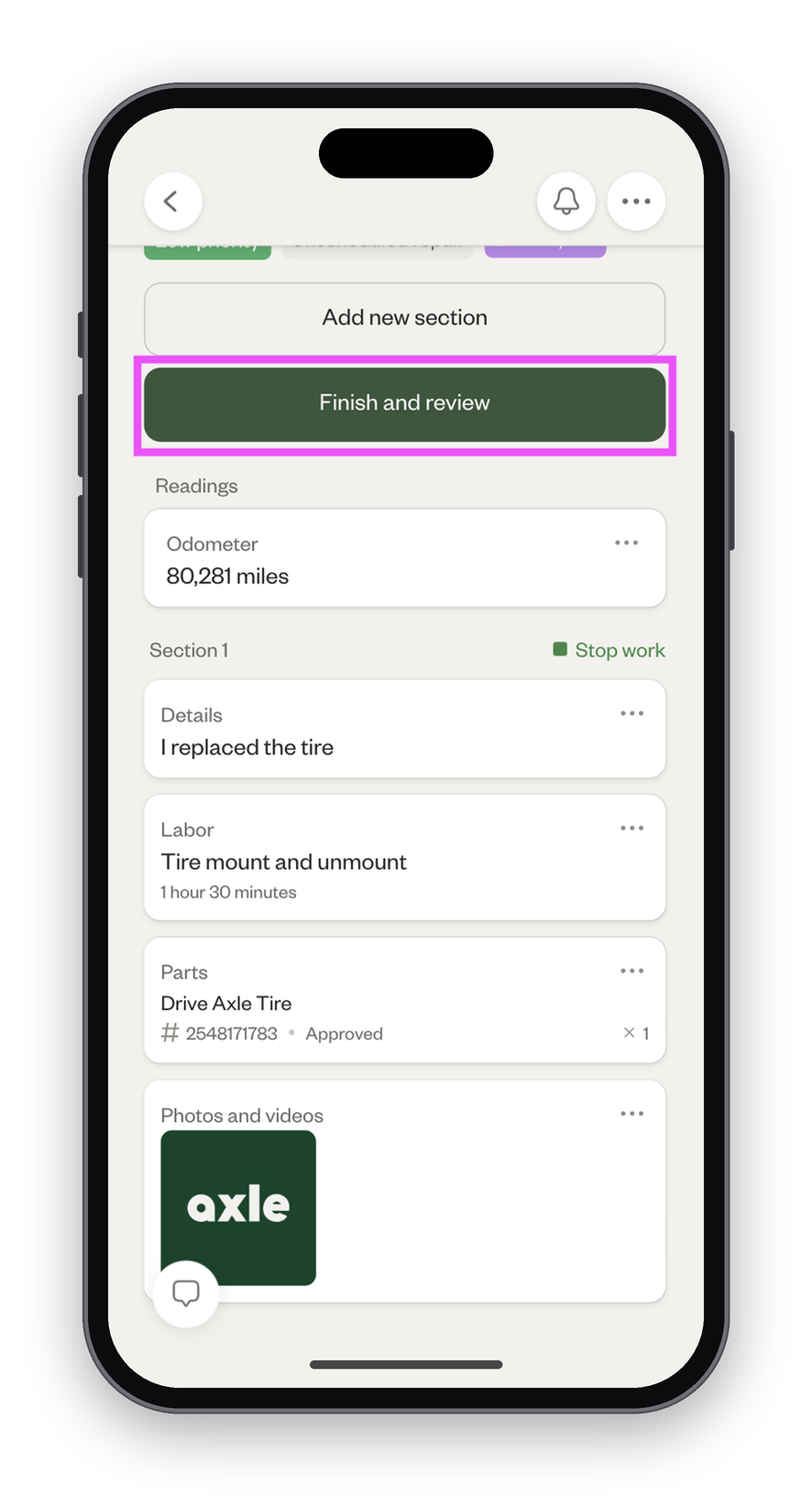
- To submit the repair order, click "Finish and review."
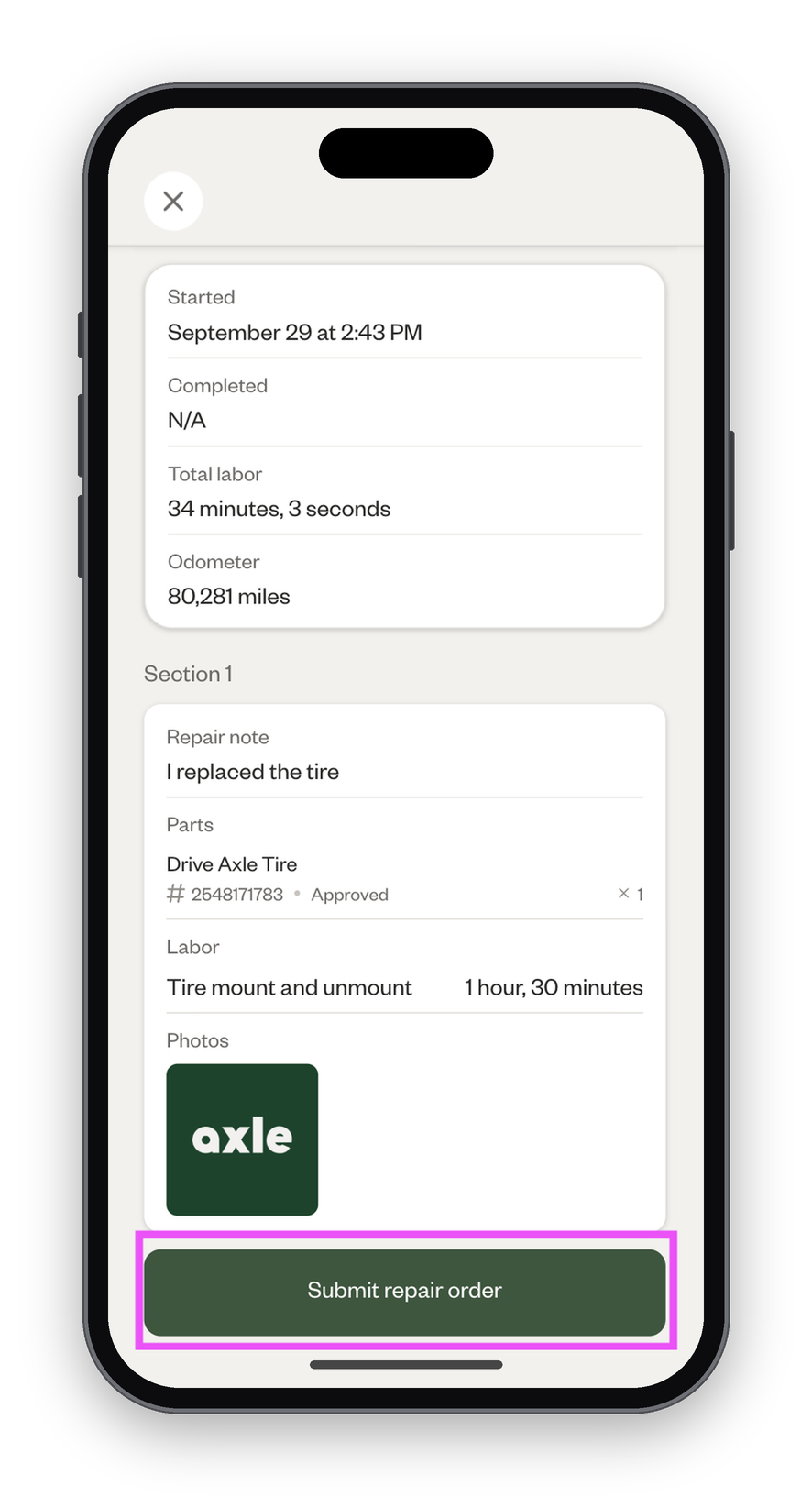
- Review a summary of your work, then scroll down and click "Submit repair order."
Continue from here
You're all set to work on your assigned repair orders in Pocket Tech. You can also create new repair orders for any work as needed.
If you have any questions, feel free to reach out to support@axlemobility.com and we'll help you out the same day!